> ## Documentation Index
> Fetch the complete documentation index at: https://docs.flowforma.com/llms.txt
> Use this file to discover all available pages before exploring further.
# Role Level Variables
> Define variables and restrictions once at role level in FlowForma Analytics so every assigned user inherits them, with clear override and cumulation rules.
Role level variables and role level restrictions give you more flexibility when creating variables and restrictions for users. Previously, if you had 10 users who all shared the same variable or restriction, you had to add the details to each individual user, which was time-consuming if you needed to change those details. With role level variables and restrictions, you add the details at role level, and when the role is assigned to users, they all inherit the same variables and restrictions. This also makes it easier to make changes, since the details are changed at role level and cascade down to all users in that role.
## Variables
The following types of variable are available in the system:
* Global Variables - a variable that is available to every user
* Role Variables - if a role has variables, these variables are available to users that are assigned to that role
* [User Variables](/product/flowforma-analytics/manage-users/user-permissions-privileges/user-variables) - a variable that is only available to a particular user
## Variable overriding
Variables are applied in the following order:
* User variables can override Role variables
* Role variables can override Global variables
To help with understanding, let's look at the following scenario. The system has been set up with:
* a global variable PI\_STYLES=default-theme (PI\_STYLES represents the theme to be used to display the dashboard)
* a role called Marketing, which has a variable PI\_STYLES=marketing-theme
* a role called Sales, which has a variable PI\_STYLES=sales-theme
* a user called Bob who, by default, has the PI\_STYLES=default theme
These variables will be applied in the following way:
* If Sales role is assigned to Bob, Bob will see the PI\_STYLES=sales-theme
* If the Sales and Marketing roles are both assigned to Bob, the ordering position, seen at the top-right of the **Dashboard Configuration > Roles** screen, determines whether the sales-theme or marketing-theme is used for Bob
 * If the Sales role has a lower ordering position than the Marketing role (meaning it's the first in the list), then sales-theme is used
* The ordering position also decides the display order of the Roles on the screen. The role with the lowest ordering position will be displayed first. In the following example, the Sales role has the position 1 and Marketing is position 2 which means that the Sales role will appear above the Marketing role
* If the Sales role has a lower ordering position than the Marketing role (meaning it's the first in the list), then sales-theme is used
* The ordering position also decides the display order of the Roles on the screen. The role with the lowest ordering position will be displayed first. In the following example, the Sales role has the position 1 and Marketing is position 2 which means that the Sales role will appear above the Marketing role
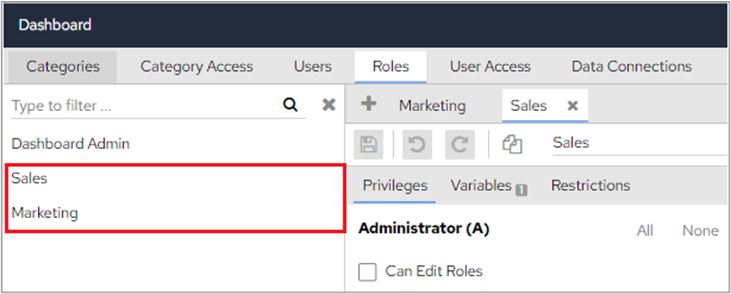 * If 2 roles have the same ordering position, alphabetical order is respected both for display purposes and when role variables conflict. In the following screenshot, both roles have the position 1, so they appear alphabetically
## Restrictions
* Role Restrictions - (available in the November 2021 release) if a role has a restriction, every user assigned to the role will inherit the same restrictions
* [User Restrictions](/product/flowforma-analytics/manage-users/user-permissions-privileges/user-restrictions) - a restriction that applies to a particular user
## Restriction cumulation and overriding
User Restrictions and Role Restrictions are applied to users as follows:
* when multiple roles with the same restriction are given to a user, the restriction accumulates
* when a user has a restriction that is the same as a role restriction, the role restriction is ignored
To help with understanding, if the system has:
* a role called Marketing, which has a restriction: Department = 'Marketing'
* a role called Sales, which has restrictions: Department = 'Sales' and Year = 2021
* a user called Andy, which has a restriction: Region = 'UK'
Then:
* By default, Andy can only see data with the Region = 'UK', because such a restriction is always applied to Andy
* If the Sales role is assigned to Andy, then Andy can only see data with
> Region = 'UK' (from Andy)
* If 2 roles have the same ordering position, alphabetical order is respected both for display purposes and when role variables conflict. In the following screenshot, both roles have the position 1, so they appear alphabetically
## Restrictions
* Role Restrictions - (available in the November 2021 release) if a role has a restriction, every user assigned to the role will inherit the same restrictions
* [User Restrictions](/product/flowforma-analytics/manage-users/user-permissions-privileges/user-restrictions) - a restriction that applies to a particular user
## Restriction cumulation and overriding
User Restrictions and Role Restrictions are applied to users as follows:
* when multiple roles with the same restriction are given to a user, the restriction accumulates
* when a user has a restriction that is the same as a role restriction, the role restriction is ignored
To help with understanding, if the system has:
* a role called Marketing, which has a restriction: Department = 'Marketing'
* a role called Sales, which has restrictions: Department = 'Sales' and Year = 2021
* a user called Andy, which has a restriction: Region = 'UK'
Then:
* By default, Andy can only see data with the Region = 'UK', because such a restriction is always applied to Andy
* If the Sales role is assigned to Andy, then Andy can only see data with
> Region = 'UK' (from Andy)
and Department = 'Sales' (Andy cannot see data related to Marketing as he hasn't been assigned to the Marketing role)
and Year = 2021 (from Sales role)
* If both the Sales and Marketing roles are assigned to Andy, then Andy can see data with
> Region = 'UK'
and Department in ('Sales', 'Marketing') - (this is because Andy has 2 roles, so he'll be able to see data related to both roles)
and Year = 2021
* If the user Andy has a restriction: Department = ('Sales', 'Dev'), while the Sales and Marketing roles are assigned to Andy, then the user restriction is used, and role level restrictions on the same topic are ignored (the Department restriction from the roles is ignored because this allows removing undesirable role restrictions)
> Region = 'UK' (from Andy)
and Department in ('Sales', 'Dev') - (from Andy, and ignore what's in the roles)
and Year = 2021 (from Sales role)