> ## Documentation Index
> Fetch the complete documentation index at: https://docs.flowforma.com/llms.txt
> Use this file to discover all available pages before exploring further.
# Roles
> Use FlowForma Analytics roles to group categories and privileges, making it easy to manage access for large numbers of users with the same requirements.
Roles provide a simple way to group categories together. This makes controlling large numbers of Analytics Dashboard users with the same access requirements much easier.
On this page you can create, edit, and delete roles. Once you've created a role, you can allocate it to users on the **User Access** tab. A user can have more than one role, and this doesn't prevent individual categories from also being allocated to them.
For example, say you have thirty Analytics Dashboard users who are all Sales Managers, and Sales Managers currently have access to six categories. If you create a seventh category for Sales Managers and haven't used roles, you would need to assign the new category to each of the 30 users individually.
However, if you had created a role called "Sales Manager" and assigned the six original categories to it, then assigned each of the 30 users to that role, you would only need to add the new category to the role to grant them access.
Roles also let you quickly apply access controls (privileges) to a group of users.
 ## Create a role
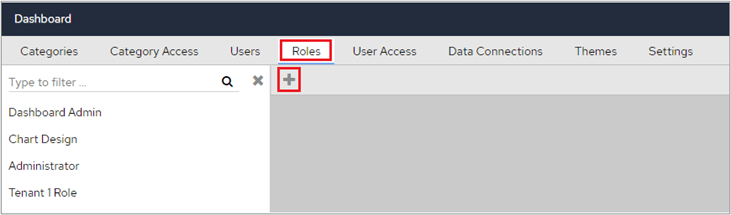
To create a role, click the **Roles** tab in the configuration screen, then click the **Add** icon at the top of the screen.
## Create a role
To create a role, click the **Roles** tab in the configuration screen, then click the **Add** icon at the top of the screen.
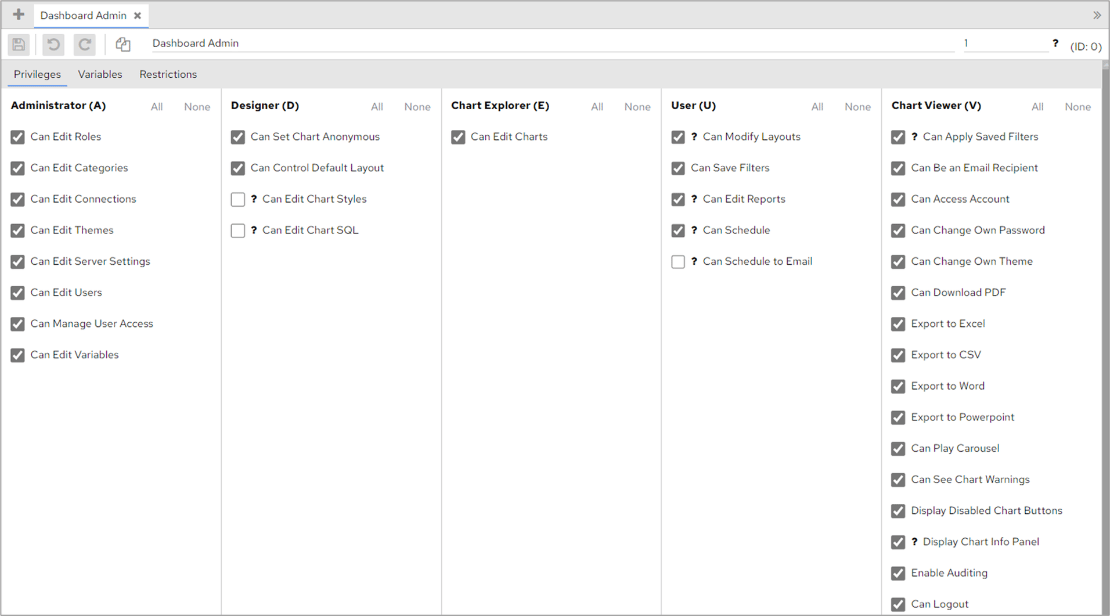
 After adding a new role, give it a title, which must be unique.
 In the **Privileges** section, select the privileges that you want to apply to the role. You may notice that some privileges have a related privilege. For example, if you hover over **Can Control Default Layout** in the **Designer** section you will notice that **Can Modify Layouts** is also highlighted in the **User** section. If you then select **Can Control Default Layout**, **Can Modify Layouts** will also be selected.
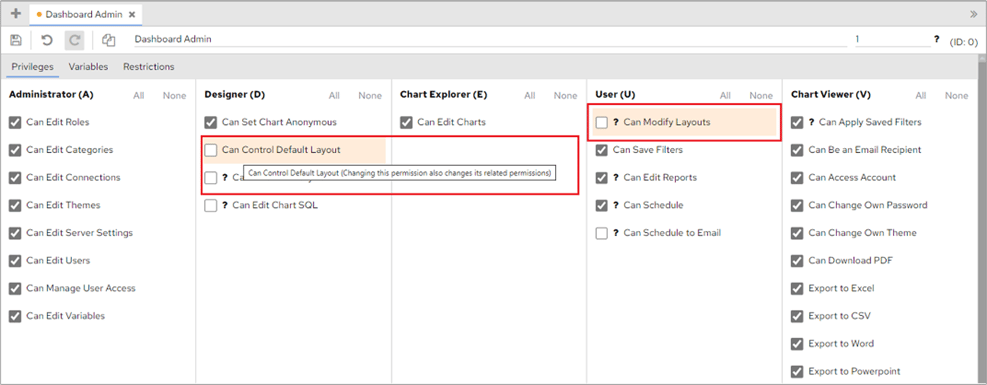 However, you can select a privilege in the **User** section, for example **Can Modify Layouts**, without also having to select **Can Control Default Layout**.
After entering a name for the role and selecting the privileges, click the **Save** icon.
However, you can select a privilege in the **User** section, for example **Can Modify Layouts**, without also having to select **Can Control Default Layout**.
After entering a name for the role and selecting the privileges, click the **Save** icon.