> ## Documentation Index
> Fetch the complete documentation index at: https://docs.flowforma.com/llms.txt
> Use this file to discover all available pages before exploring further.
# How Do I Change My Password?
> Change your FlowForma Analytics dashboard password from the More Options menu using the Change Password section under your account name.
Usually, your password is set to expire after a certain number of days, and you are forced to reset it when this happens. There may, however, be instances when you need to change your password before the specified number of days is reached.
## Instructions
1. Click the **More Options** icon at the top right of the dashboard.
 2. Under the **More Options** menu, click your name. You should see the **Change Password** section on the left-hand side.
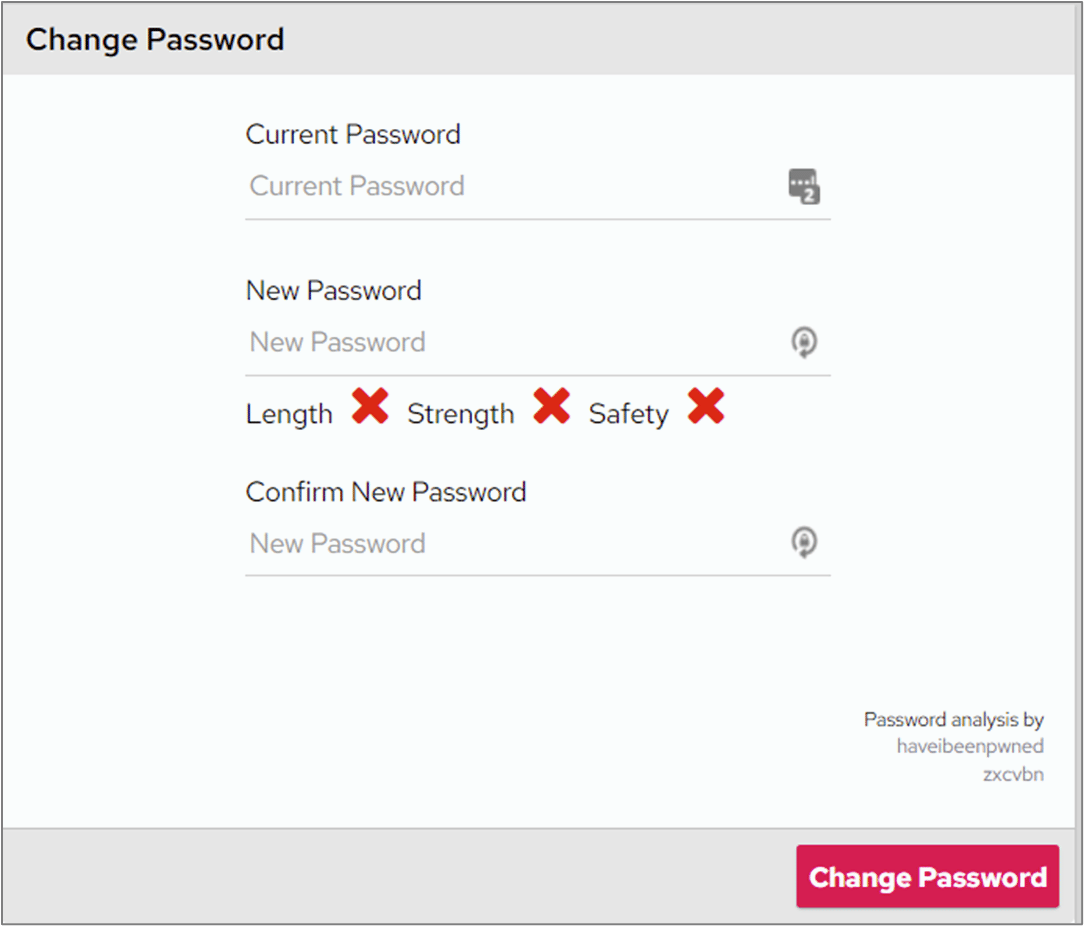 In certain circumstances, your System Administrator might have removed the option to change your password. If you can't see the **Change Password** section under More Options, speak to your System Administrator for clarification.