> ## Documentation Index
> Fetch the complete documentation index at: https://docs.flowforma.com/llms.txt
> Use this file to discover all available pages before exploring further.
# Chart Configuration
> Set chart-wide options in FlowForma Analytics, including category, link buttons, password protection, parent charts, null handling, and PDF export.
In this section, you can set chart options that apply to the whole chart, i.e., to all drill levels.
In the Edit Chart screen, click the **Config** icon at the top of the screen.
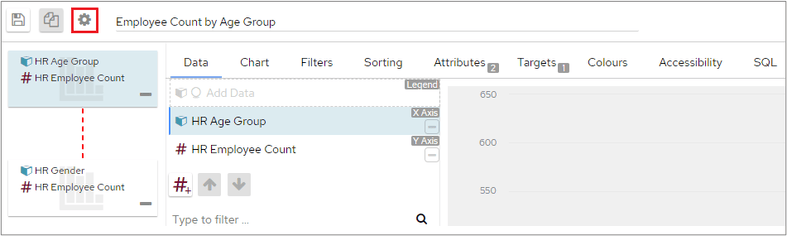 Once clicked, the button becomes a toggle allowing you to return to the chart.
 ## Chart category
This drop-down list allows you to change the parent category that this chart belongs to, which may have an effect on security: if a user does not have access to the category you have placed the chart in, they will be unable to see it. However, all charts can be assigned to the category 'Home', which means they can be accessed by all users.
To change or assign a category, click the drop-down arrow.
## Chart category
This drop-down list allows you to change the parent category that this chart belongs to, which may have an effect on security: if a user does not have access to the category you have placed the chart in, they will be unable to see it. However, all charts can be assigned to the category 'Home', which means they can be accessed by all users.
To change or assign a category, click the drop-down arrow.
 This will display a list of all available categories, click the one that you want to assign the chart to.
## Chart links
This option allows you to add link buttons to a chart so users can navigate to other charts/tables based on the button they click. To use link buttons, you will need to create the chart(s) that you want to link to. This can either mean creating the chart from scratch or linking to an existing one in the library. If you need to create a new chart, see Creating Charts for full details.
To create the link buttons, click the **Edit chart** icon in the Chart tools menu.
Click the **Config** button at the top-left of the **Edit chart** screen.
In the Config screen, click the **Add** icon in the Chart Links section.
In the **Label** field, type the text that you want to appear as the link. The text should give some information to a user about what they might see by clicking the link.
In the next field, click the drop-down arrow. This will display the Chart Library from where you can select the chart that you want to link to.
This will display a list of all available categories, click the one that you want to assign the chart to.
## Chart links
This option allows you to add link buttons to a chart so users can navigate to other charts/tables based on the button they click. To use link buttons, you will need to create the chart(s) that you want to link to. This can either mean creating the chart from scratch or linking to an existing one in the library. If you need to create a new chart, see Creating Charts for full details.
To create the link buttons, click the **Edit chart** icon in the Chart tools menu.
Click the **Config** button at the top-left of the **Edit chart** screen.
In the Config screen, click the **Add** icon in the Chart Links section.
In the **Label** field, type the text that you want to appear as the link. The text should give some information to a user about what they might see by clicking the link.
In the next field, click the drop-down arrow. This will display the Chart Library from where you can select the chart that you want to link to.
 When all Links have been created, click the **Save** button in the top-left corner. This will return you to the dashboard, where you will be able to see the link button at the bottom right of your chart.
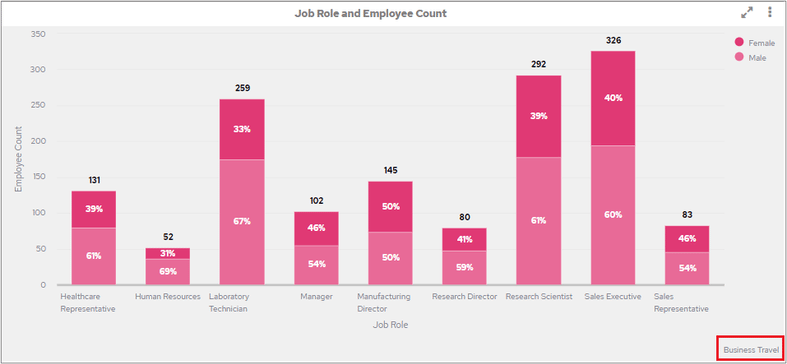 **Example**
The following example shows the chart that is displayed after the link button in the previous screenshot is clicked. To return to the main chart, click the **Reset to original chart** icon in the bottom left corner.
**Example**
The following example shows the chart that is displayed after the link button in the previous screenshot is clicked. To return to the main chart, click the **Reset to original chart** icon in the bottom left corner.
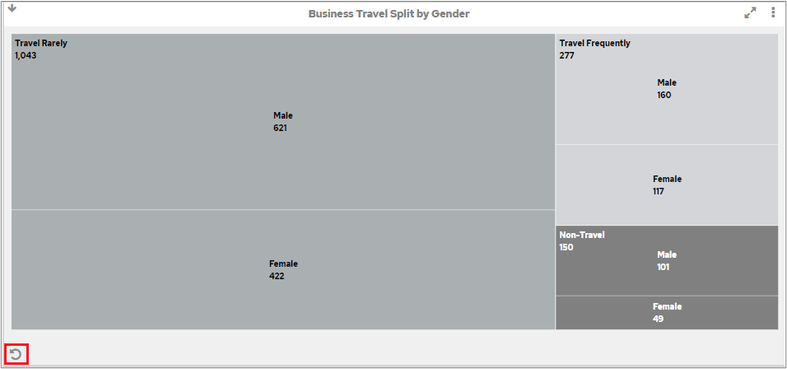 Remember that you may need to create link buttons on every connected chart, so users can navigate to all the connected charts from whichever chart they are currently viewing.
**Sorting the Link Buttons**
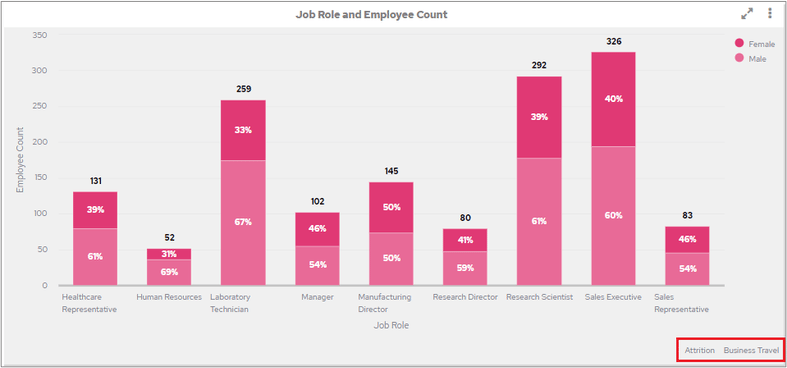
By default, the Link Buttons will appear in the order they were added in the Chart Configuration screen. If preferred, you can sort them into alphabetical order by clicking the sort button at the top-right of the Chart Links section.
Remember that you may need to create link buttons on every connected chart, so users can navigate to all the connected charts from whichever chart they are currently viewing.
**Sorting the Link Buttons**
By default, the Link Buttons will appear in the order they were added in the Chart Configuration screen. If preferred, you can sort them into alphabetical order by clicking the sort button at the top-right of the Chart Links section.
 The Link Buttons will now appear in alphabetical order in the chart cell.
 **Removing Link Buttons**
To remove link buttons, click the **Edit chart** icon in the **Chart tools** menu in the chart cell that you created the link buttons in.
Click the **Config** icon at the top of the **Edit chart** screen and click the remove icon next to the link that you want to remove.
**Removing Link Buttons**
To remove link buttons, click the **Edit chart** icon in the **Chart tools** menu in the chart cell that you created the link buttons in.
Click the **Config** icon at the top of the **Edit chart** screen and click the remove icon next to the link that you want to remove.
 Click the **Save** icon to confirm the changes. The link button will no longer be displayed in the chart cell.
**Chart Links Position**
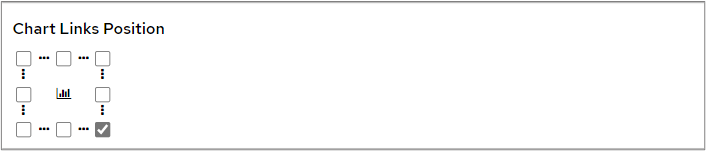
By default, link buttons are positioned at the bottom right of a cell. Similar to Legend Positions, this section allows you to decide where the chart link buttons are positioned in a chart cell.
Click the **Save** icon to confirm the changes. The link button will no longer be displayed in the chart cell.
**Chart Links Position**
By default, link buttons are positioned at the bottom right of a cell. Similar to Legend Positions, this section allows you to decide where the chart link buttons are positioned in a chart cell.
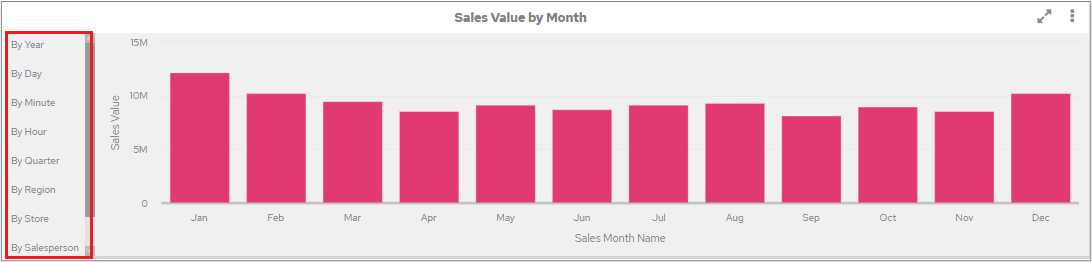
 If there are a large number of Link buttons, a vertical scroll will be created for the following positions:
* Top Left
* Top Right
* Middle Left
* Middle Right
The following screenshot shows the scroll bar on the Chart Links position of 'Top Left'.
If there are a large number of Link buttons, a vertical scroll will be created for the following positions:
* Top Left
* Top Right
* Middle Left
* Middle Right
The following screenshot shows the scroll bar on the Chart Links position of 'Top Left'.
 ## Chart password
This section allows you to restrict the chart with a password. A text box will appear under the radio buttons that will ask you to create and confirm your password when a protected state is selected.
**No password** – users will be able to open and edit a chart by clicking the **Edit Chart** icon.
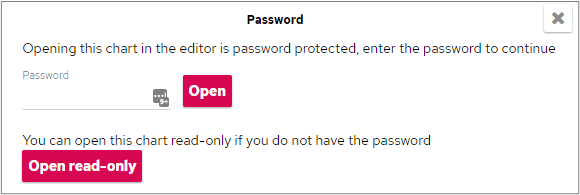
**Protect write** – users will need to specify a password to open the **Edit Chart** screen and make changes to the chart. If they don't know the password, they can click **Open read-only**. In the **Edit Chart** screen, all edit options will still be visible and users can click on and change any of them, but they will be unable to click the **Save** icon to confirm the changes.
## Chart password
This section allows you to restrict the chart with a password. A text box will appear under the radio buttons that will ask you to create and confirm your password when a protected state is selected.
**No password** – users will be able to open and edit a chart by clicking the **Edit Chart** icon.
**Protect write** – users will need to specify a password to open the **Edit Chart** screen and make changes to the chart. If they don't know the password, they can click **Open read-only**. In the **Edit Chart** screen, all edit options will still be visible and users can click on and change any of them, but they will be unable to click the **Save** icon to confirm the changes.
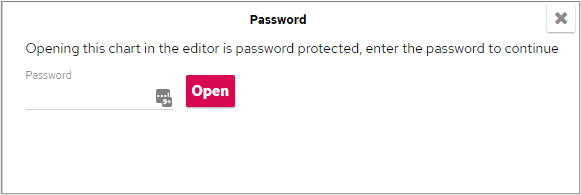
 **Protect read/write** – users will be unable to access the **Edit Chart** screen without specifying the password. In the **Edit Chart** screen users will be able to make changes to the chart and save those changes.
 ## Chart properties
**Convert empty Measure values into Nulls or Zeros**
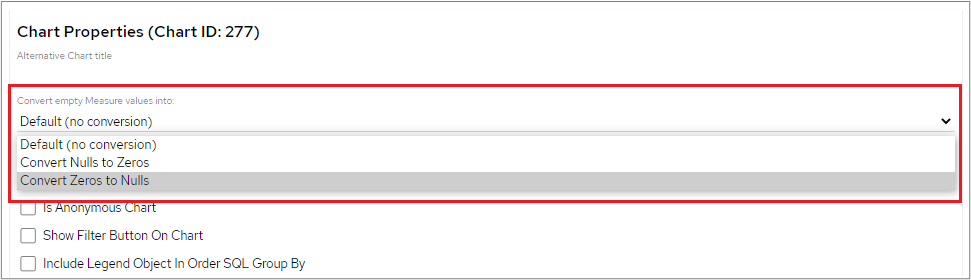
The **Convert empty measure values into** field can be used to select how empty data should be displayed on a chart.
## Chart properties
**Convert empty Measure values into Nulls or Zeros**
The **Convert empty measure values into** field can be used to select how empty data should be displayed on a chart.
 The standard setting for this field is 'Default (no conversion)', but you can also choose 'Convert Nulls to Zeros' or 'Convert Zeros to Nulls'.
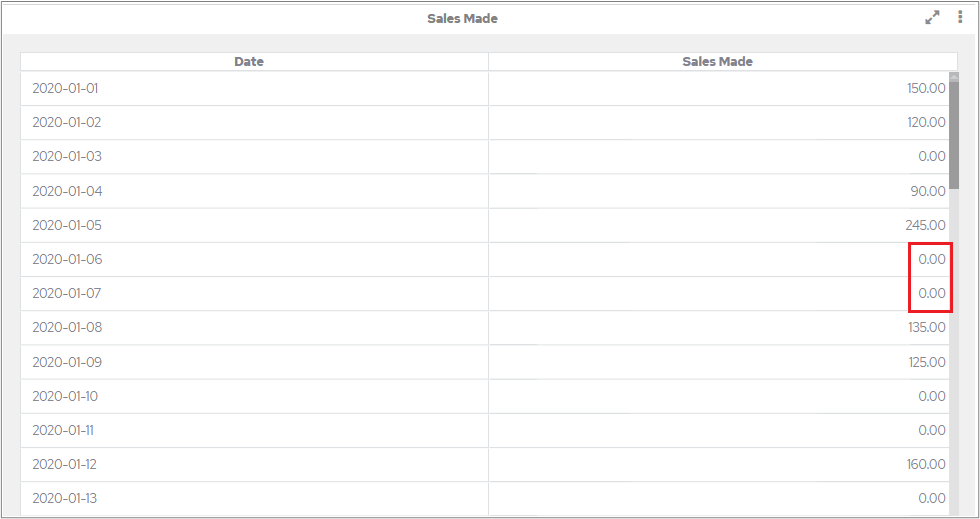
 In the following example, 'Convert Nulls to Zeros' has been selected.
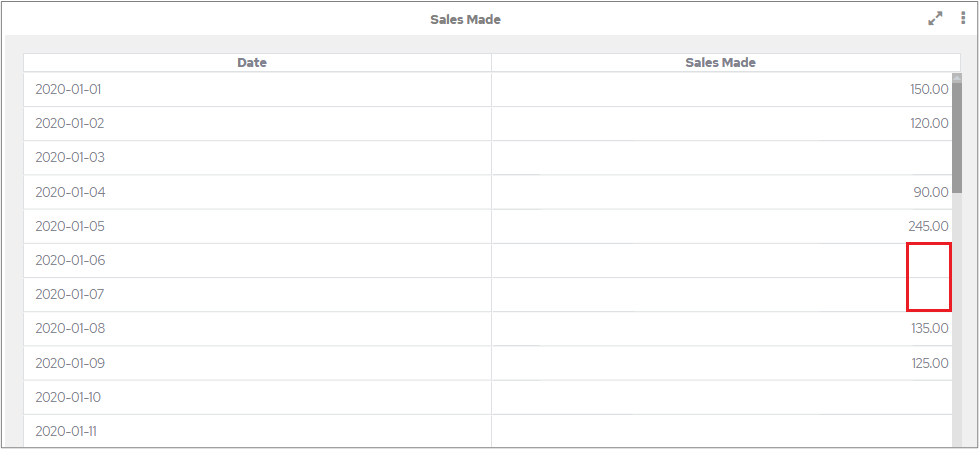
 In the following example, 'Convert Zeros to Nulls' has been selected.
 **Parent Chart**
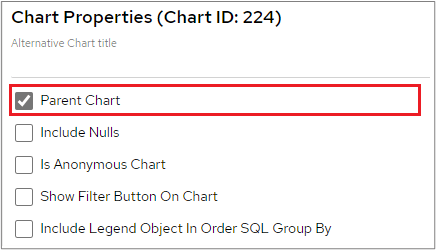
This checkbox will set the current chart as a parent; this means that all other charts on the category will be filtered by the value that is selected on this chart.
If you make a chart a Parent Chart, then any drilldowns on the chosen chart will no longer work. This is because selecting a segment of data will also filter the other charts on the same category.
To create a parent chart, choose the chart you want to use and click the **Edit chart** icon in the **Chart tools** menu.
Click the **Config** icon at the top of the **Edit chart** screen.
**Parent Chart**
This checkbox will set the current chart as a parent; this means that all other charts on the category will be filtered by the value that is selected on this chart.
If you make a chart a Parent Chart, then any drilldowns on the chosen chart will no longer work. This is because selecting a segment of data will also filter the other charts on the same category.
To create a parent chart, choose the chart you want to use and click the **Edit chart** icon in the **Chart tools** menu.
Click the **Config** icon at the top of the **Edit chart** screen.
 On the right-hand side of the config screen, tick the **Parent Chart** box and then click the **Save** icon to return to the dashboard.
 When a chart has been set up as a parent chart, the **Alert** icon will be displayed in the top-left corner of the chart cell. If you hover over the icon it will display a tool tip to let you know that you are viewing a parent chart.
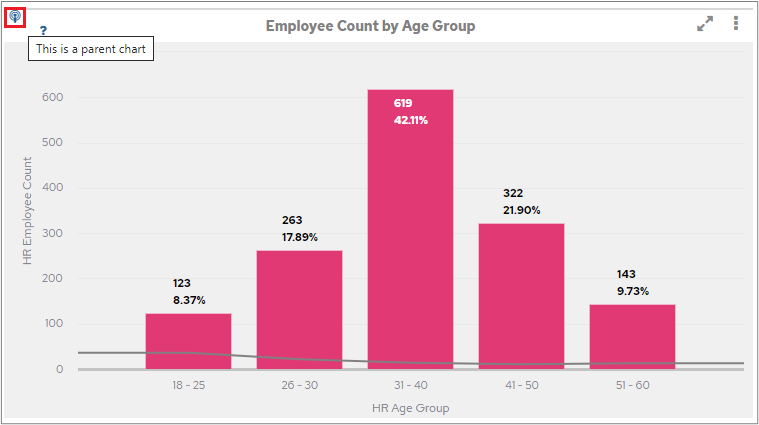 If you click the icon, the Notifications area will let you know that other charts in this category will be affected when this one is filtered. This refers to charts that are linked to the option clicked in the parent chart.
 To return to viewing all data on all charts, click the **Reset** icon at the bottom left of the parent chart cell.
This option will not be available for Analytic chart types.
**Include Nulls**
This checkbox will include NULL values when filtering. For example, if you're filtering on Department = "Sales", then with this checkbox ticked, you will be filtering on Department = Sales or Department is null.
**Is Anonymous Chart**
This checkbox allows you to view the chart without needing to log into the dashboard, for example to embed it into a website or intranet. The ability to do this is controlled by the end user's licence.
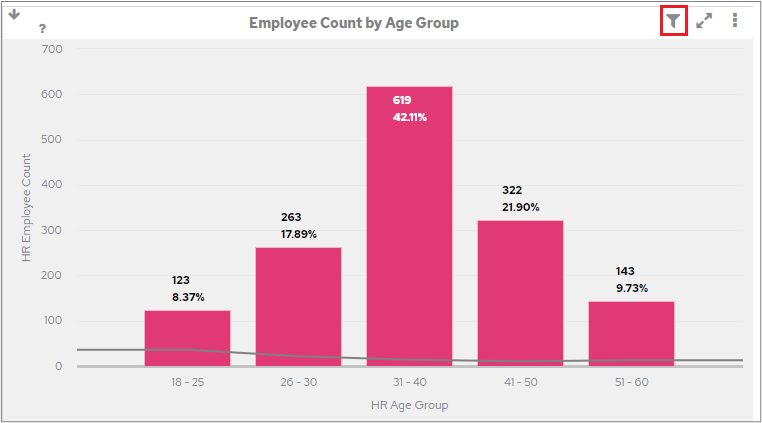
**Show Filter Button On Chart**
This checkbox will show the Temporary filter button on the chart.
To return to viewing all data on all charts, click the **Reset** icon at the bottom left of the parent chart cell.
This option will not be available for Analytic chart types.
**Include Nulls**
This checkbox will include NULL values when filtering. For example, if you're filtering on Department = "Sales", then with this checkbox ticked, you will be filtering on Department = Sales or Department is null.
**Is Anonymous Chart**
This checkbox allows you to view the chart without needing to log into the dashboard, for example to embed it into a website or intranet. The ability to do this is controlled by the end user's licence.
**Show Filter Button On Chart**
This checkbox will show the Temporary filter button on the chart.
 **Include Legend Object in Order SQL Group By**
This checkbox will put the Legend Object within the **Group By** section of the SQL generated by the chart.
**Exclude Chart From Cache**
This checkbox will exclude the chart from the cache, meaning that data for the chart will always be reloaded from the database. This ensures that your chart data is always up to date when the chart is displayed but will have an adverse effect on performance.
## PDF settings
This enables you to choose whether PDFs rendered from this chart are formatted in Portrait or Landscape mode.
## Export as Excel without format
This will remove any dashboard formatting applied to objects, for example prefix, suffix, decimal places, and thousand separators, from Excel files produced by the dashboard. Formatting applied to the chart, such as colour options as shown below, will not be removed.
**Example with this option unticked**
**Include Legend Object in Order SQL Group By**
This checkbox will put the Legend Object within the **Group By** section of the SQL generated by the chart.
**Exclude Chart From Cache**
This checkbox will exclude the chart from the cache, meaning that data for the chart will always be reloaded from the database. This ensures that your chart data is always up to date when the chart is displayed but will have an adverse effect on performance.
## PDF settings
This enables you to choose whether PDFs rendered from this chart are formatted in Portrait or Landscape mode.
## Export as Excel without format
This will remove any dashboard formatting applied to objects, for example prefix, suffix, decimal places, and thousand separators, from Excel files produced by the dashboard. Formatting applied to the chart, such as colour options as shown below, will not be removed.
**Example with this option unticked**
 **Example with this option ticked**
 ## Help text
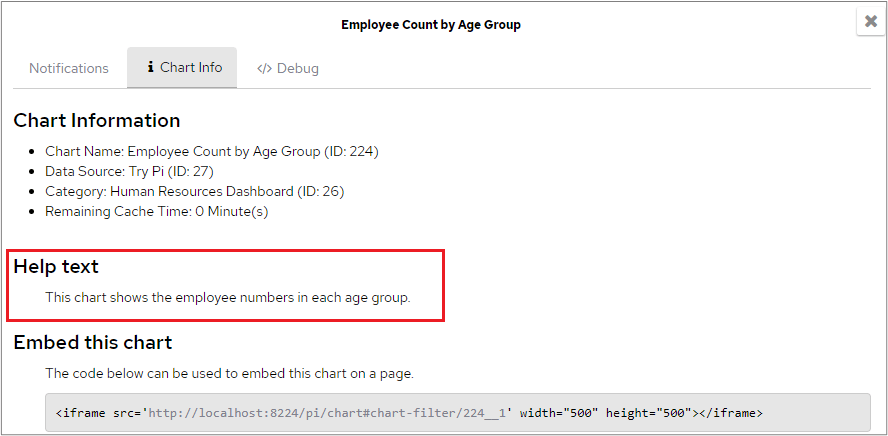
Whatever you place in the Help Text field:
## Help text
Whatever you place in the Help Text field:
 will be displayed to end users in the Chart Info window:
 ## Delete chart
Clicking this button will delete the chart you are currently editing.
Charts can also be deleted 'en masse' (or individually) in Admin Tools – Category Access.
## Delete chart
Clicking this button will delete the chart you are currently editing.
Charts can also be deleted 'en masse' (or individually) in Admin Tools – Category Access.