> ## Documentation Index
> Fetch the complete documentation index at: https://docs.flowforma.com/llms.txt
> Use this file to discover all available pages before exploring further.
# Flow connectors
> Use the FlowForma BPM connector for Microsoft Power Automate to start a new form automatically from triggers such as new emails, list items, or files.
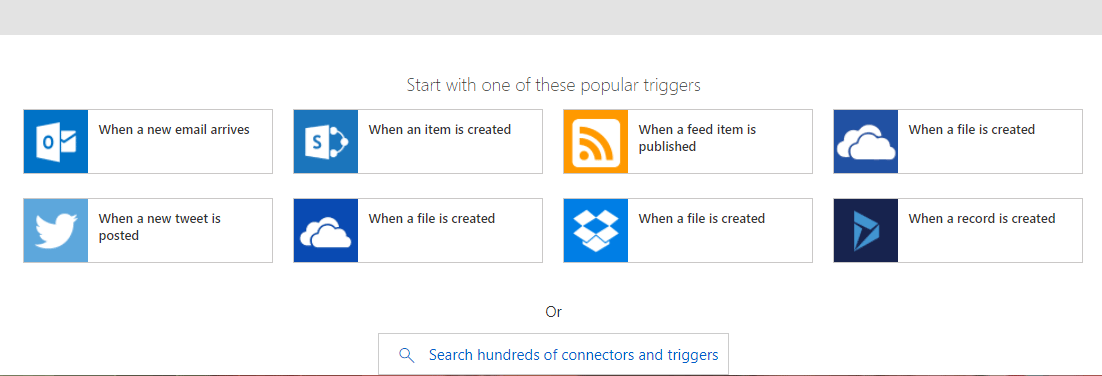
The **FlowForma BPM connector** for **Microsoft Power Automate** lets you start a new FlowForma form **automatically** using Power Automate triggers. Some of the most popular **triggers** are:
* when a new email arrives
* when an item is created
* when a feed item is published
* when a file is created in OneDrive
* when a new tweet is posted
* when a file is created in DropBox
* when a record is created
To create a new form automatically, follow these steps:
* Create your FlowForma flow in the FlowForma app. The questions in the flow that are populated from the trigger must be **single line of text** questions.
* Create your Power Automate flow by connecting to [https://flow.microsoft.com](https://flow.microsoft.com)
To create your Power Automate flow, go to **my flows** and click **create from blank**
 Select your **trigger** from the popular trigger list or by using the **search**.
In the example below, we created a tasks list in SharePoint and want to create a new form each time a task is added to the list. So in this case, the trigger is **when an item is created**.
Select your **trigger** from the popular trigger list or by using the **search**.
In the example below, we created a tasks list in SharePoint and want to create a new form each time a task is added to the list. So in this case, the trigger is **when an item is created**.
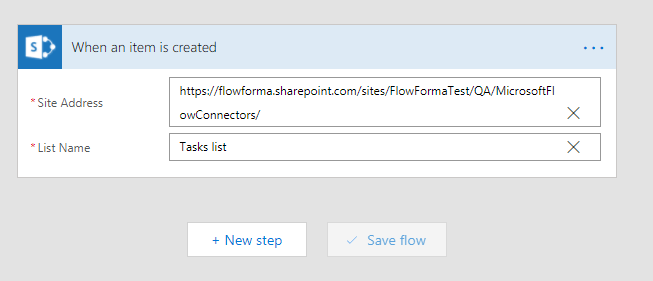
 Once you select the trigger, the window below is displayed and you must insert:
* **site address**: this is the URL of the site where you created the trigger list. You can select a site from the drop-down or enter a custom value.
* **list name**: this is the name of the trigger list. Once you have entered the site address, you can select the list from the drop-down or enter a custom value.
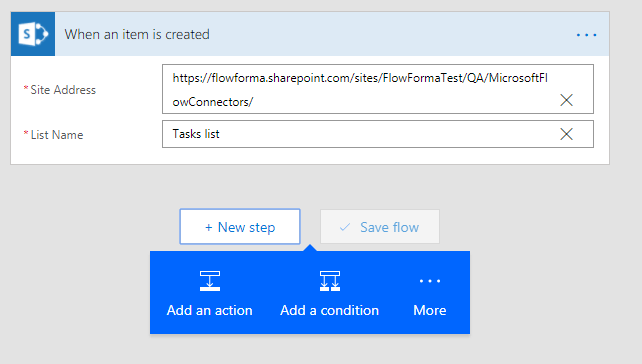
Click **new step**
Once you select the trigger, the window below is displayed and you must insert:
* **site address**: this is the URL of the site where you created the trigger list. You can select a site from the drop-down or enter a custom value.
* **list name**: this is the name of the trigger list. Once you have entered the site address, you can select the list from the drop-down or enter a custom value.
Click **new step**
 Click **add an action**
 In the search box, type FlowForma and select the **premium** version.
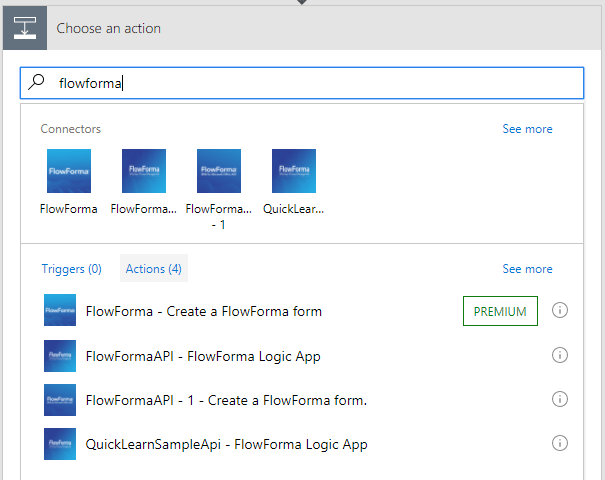 In the new window, enter your FlowForma details. First, **create a new connection** with the following details, by clicking the three dots in the top right corner:
* **Connection name**: name the connection, as you might want to reuse it in other Power Automate flows.
* **Username**: in the format of an email address, this is the account you use in Office 365.
* **Password**: the password of the account used above.
Next, enter the following:
* **FlowForma url**: the URL of the FlowForma app
* **Flows**: once you enter the FlowForma app URL, you can select the flow from the drop-down or enter a custom value.
In the new window, enter your FlowForma details. First, **create a new connection** with the following details, by clicking the three dots in the top right corner:
* **Connection name**: name the connection, as you might want to reuse it in other Power Automate flows.
* **Username**: in the format of an email address, this is the account you use in Office 365.
* **Password**: the password of the account used above.
Next, enter the following:
* **FlowForma url**: the URL of the FlowForma app
* **Flows**: once you enter the FlowForma app URL, you can select the flow from the drop-down or enter a custom value.
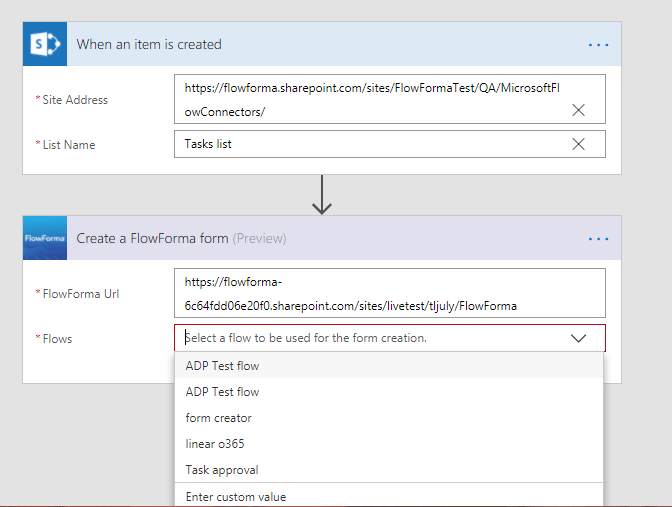 After you select the flow, new fields are displayed. These fields are the questions from the selected flow. You can populate these fields with values from the selected trigger list. The values from the trigger list are on the **dynamic content** panel.
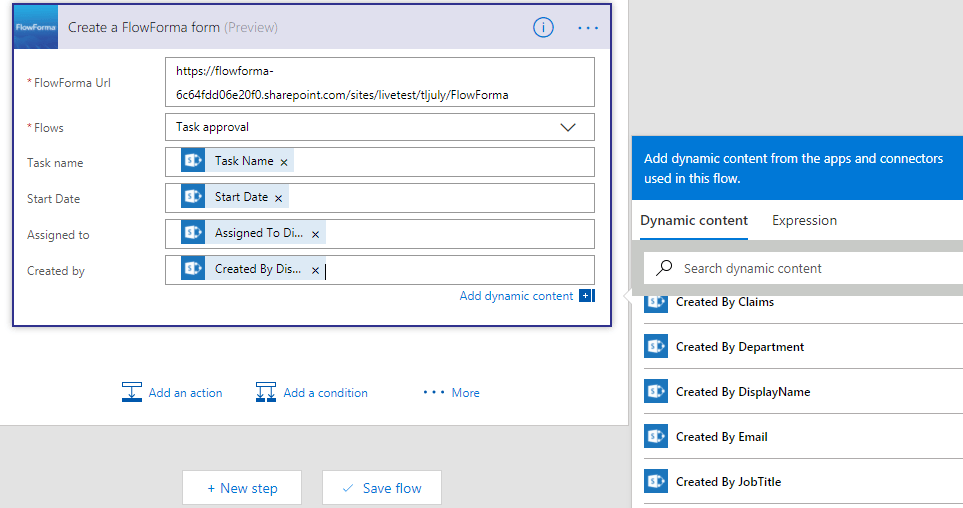 Once you have defined all the fields that must be populated from the list item, **save** the flow.
You can change the connection you use at any time by clicking the three dots in the top right corner. Make sure the user used to connect to FlowForma has permission to **create forms** in FlowForma.
Once you have defined all the fields that must be populated from the list item, **save** the flow.
You can change the connection you use at any time by clicking the three dots in the top right corner. Make sure the user used to connect to FlowForma has permission to **create forms** in FlowForma.
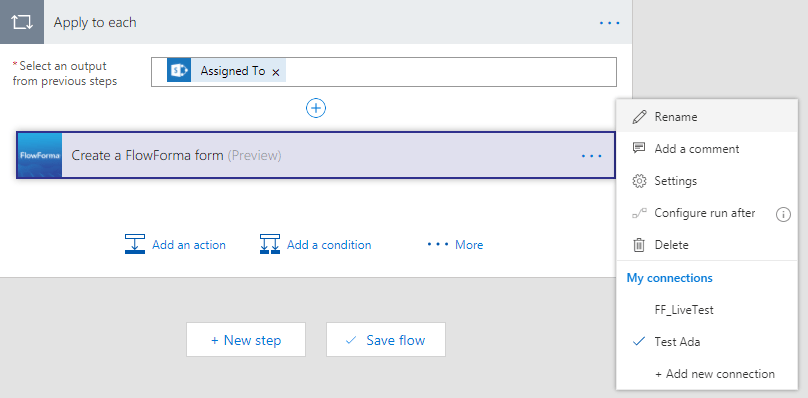 In FlowForma, the forms appear to be created by the user used to connect to FlowForma. No matter who creates the task list item, the FlowForma form is created by and assigned to the user selected to connect to the app. If you want to change assignments for the first step of the form, you can use a **step assign** rule.
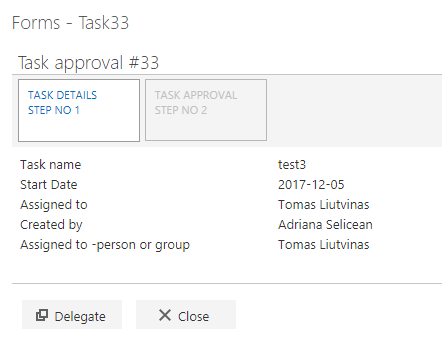
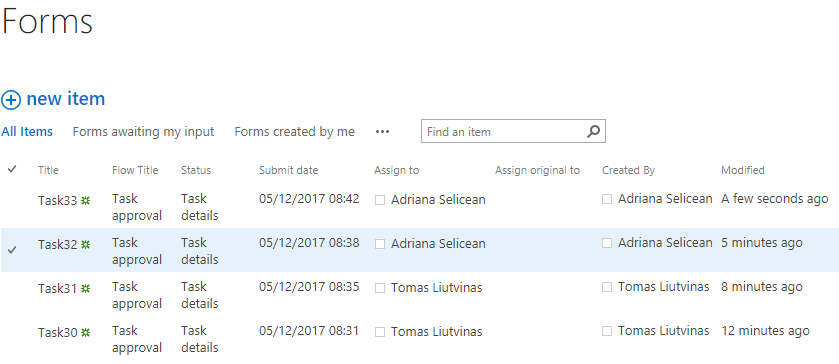 When you open the form, you can see that the values from the task list item have been saved to the form.