> ## Documentation Index
> Fetch the complete documentation index at: https://docs.flowforma.com/llms.txt
> Use this file to discover all available pages before exploring further.
# Step
> Steps are the sections of a FlowForma form where users supply information; reorder them by drag-and-drop and show, hide, enable, or disable them as needed.
A flow always has at least one step, and a form isn't saved in the system until you've saved or submitted the first step. Steps are essentially sections of the form, and users must supply information in each step. There's no limit to how many steps you can add. You might use a step to capture information, sign off on something, and so on.
You can create steps directly from the steps list in the quick launch panel, but you can also do this via the flow designer.
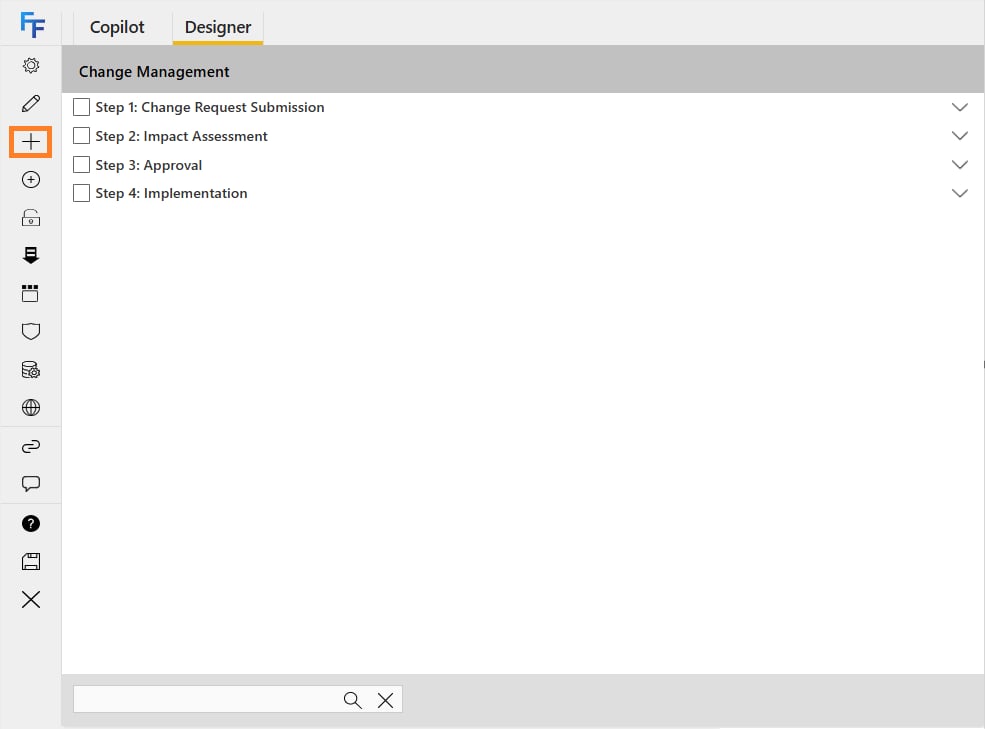 Once you've added your steps, you can drag and drop to reorder them. You can also reorder questions within a step by dragging and dropping, but you cannot drag and drop questions between different steps.
### Show/hide and enable/disable steps
By default, all steps in a new flow are visible and enabled, allowing users to enter data into the questions.
* **To hide a step**: select the checkbox next to it (multiple steps can be selected), then click the show/hide icon. Hidden steps won't appear when the form is used.
* You have **two approval steps**, and only one is needed based on logic (e.g., request cost or type).
* A **follow-up step** should only be shown if a specific answer was given in a previous step.
* **Conditional sections** of the process that only apply to certain departments or user roles.
* Hidden steps are shown with an eye icon indicating they're not shown by default
Once you've added your steps, you can drag and drop to reorder them. You can also reorder questions within a step by dragging and dropping, but you cannot drag and drop questions between different steps.
### Show/hide and enable/disable steps
By default, all steps in a new flow are visible and enabled, allowing users to enter data into the questions.
* **To hide a step**: select the checkbox next to it (multiple steps can be selected), then click the show/hide icon. Hidden steps won't appear when the form is used.
* You have **two approval steps**, and only one is needed based on logic (e.g., request cost or type).
* A **follow-up step** should only be shown if a specific answer was given in a previous step.
* **Conditional sections** of the process that only apply to certain departments or user roles.
* Hidden steps are shown with an eye icon indicating they're not shown by default
 * **To disable a step**: select the checkbox and click the enable/disable icon.
* Disabled steps will still appear but cannot be edited.
* If you're submitting step 1 and step 2 is disabled, step 2 will be skipped and the form will move to step 3.
* This is used in cases where a form is passed back to a previous step and you want to skip over steps that don't need to be resubmitted.
* Disabled steps are shown with an X icon indicating they're disabled by default
* **To disable a step**: select the checkbox and click the enable/disable icon.
* Disabled steps will still appear but cannot be edited.
* If you're submitting step 1 and step 2 is disabled, step 2 will be skipped and the form will move to step 3.
* This is used in cases where a form is passed back to a previous step and you want to skip over steps that don't need to be resubmitted.
* Disabled steps are shown with an X icon indicating they're disabled by default
