> ## Documentation Index
> Fetch the complete documentation index at: https://docs.flowforma.com/llms.txt
> Use this file to discover all available pages before exploring further.
# Wet Signature
> Use the Wet Signature question to let users draw a signature with a stylus, finger, or mouse and embed the answer token into a generated document.
The wet signature question type lets users draw their signature. This works on mobile devices using a stylus or finger, or on laptops and desktops using a mouse. You can then use the answer token from this question in a document template to include the signature.
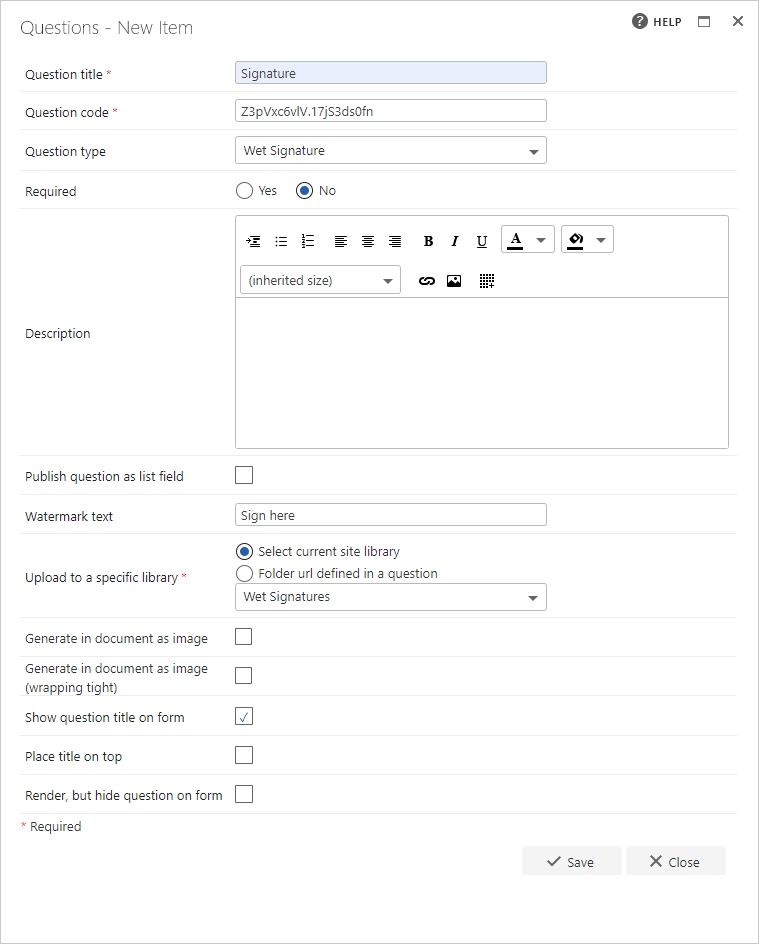 **Question title**: each question must have a title. It's a required field and appears on the form as a label when the user fills in the question
**Question code**: each question needs a unique code. One is generated by default when you start creating a new question, but you can overwrite this and give it a different code if you prefer. The question code won't appear on the form itself, but you can use it to search and filter questions when adding them
**Question type**: Wet Signature
**Required**: you need to specify whether the question is required or not. If you set a question as required, the user must provide an answer to it on the form in order to submit the form. However, the user can save as a draft without answering all required questions. If you try to submit a form without answering all required questions, an error message appears showing a list of questions that haven't been answered
**Question description**: it's optional whether you enter a description or not. The description is used as a tooltip on the form and adds an exclamation point beside the question on the form. If the user clicks on the exclamation point, the description (tooltip) appears
**Publish question as list field**: check this box to save the question to the SharePoint forms list. This allows you to report on the question from there.
Publishing a wet signature question displays a URL to the image created.
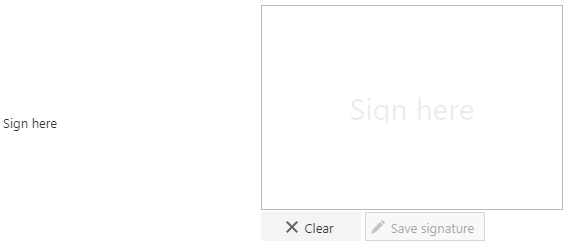
**Watermark text**: the text shown in the signature field before the user signs
**Question title**: each question must have a title. It's a required field and appears on the form as a label when the user fills in the question
**Question code**: each question needs a unique code. One is generated by default when you start creating a new question, but you can overwrite this and give it a different code if you prefer. The question code won't appear on the form itself, but you can use it to search and filter questions when adding them
**Question type**: Wet Signature
**Required**: you need to specify whether the question is required or not. If you set a question as required, the user must provide an answer to it on the form in order to submit the form. However, the user can save as a draft without answering all required questions. If you try to submit a form without answering all required questions, an error message appears showing a list of questions that haven't been answered
**Question description**: it's optional whether you enter a description or not. The description is used as a tooltip on the form and adds an exclamation point beside the question on the form. If the user clicks on the exclamation point, the description (tooltip) appears
**Publish question as list field**: check this box to save the question to the SharePoint forms list. This allows you to report on the question from there.
Publishing a wet signature question displays a URL to the image created.
**Watermark text**: the text shown in the signature field before the user signs
 **Upload to a specific library**: this is a required field. Choose **Select current site library** to pick the document library where signatures created with the Wet Signature question are stored, or **Folder url defined in a question** to use a folder URL supplied by another question. Security can be added to the library or folder to restrict access, while still allowing signatures to be visible in forms.
**Generate in document as image:** select this if you want images to be generated and uploaded into a FlowForma generated document, created using the generate document rule. This places the image into the location you've selected in the document template
**Generate in document as image (wrapping tight):** select this if you want images to be generated and uploaded into a FlowForma generated document, created using the generate document rule. This places the image into the location you've selected in the document template using "wrapping tight"
**Max image width**: appears when either of the generate-as-image options is selected. Set the maximum width, in pixels, of the signature image when it's printed in the document
**Show question title on form**: check this option if you want to display the question's title to the left of the actual input field. If you uncheck this option, the input field moves out to the left and appears right under the other questions/question titles
**Place title on top**: check this option to display the question's title above the input field. If you uncheck this option, the title appears to the left of the input field, as normal
**Render, but hide question on form**: if you check this option, the question behaves as shown by default (default value, publishing, and calculation apply). However, the question isn't displayed on the form
Once you've entered all relevant information, click **save**. If you don't want to save the question or the changes you've made, click **close**
**Upload to a specific library**: this is a required field. Choose **Select current site library** to pick the document library where signatures created with the Wet Signature question are stored, or **Folder url defined in a question** to use a folder URL supplied by another question. Security can be added to the library or folder to restrict access, while still allowing signatures to be visible in forms.
**Generate in document as image:** select this if you want images to be generated and uploaded into a FlowForma generated document, created using the generate document rule. This places the image into the location you've selected in the document template
**Generate in document as image (wrapping tight):** select this if you want images to be generated and uploaded into a FlowForma generated document, created using the generate document rule. This places the image into the location you've selected in the document template using "wrapping tight"
**Max image width**: appears when either of the generate-as-image options is selected. Set the maximum width, in pixels, of the signature image when it's printed in the document
**Show question title on form**: check this option if you want to display the question's title to the left of the actual input field. If you uncheck this option, the input field moves out to the left and appears right under the other questions/question titles
**Place title on top**: check this option to display the question's title above the input field. If you uncheck this option, the title appears to the left of the input field, as normal
**Render, but hide question on form**: if you check this option, the question behaves as shown by default (default value, publishing, and calculation apply). However, the question isn't displayed on the form
Once you've entered all relevant information, click **save**. If you don't want to save the question or the changes you've made, click **close**