> ## Documentation Index
> Fetch the complete documentation index at: https://docs.flowforma.com/llms.txt
> Use this file to discover all available pages before exploring further.
# Repeating table question
> Use the Repeating table question to display sub-questions as columns and let users add rows of data, with footers, themes, row limits, and CSV export.
Use a repeating table question when you want to display questions in a tabular format, where each question becomes a column, and let users give multiple answers by adding rows to the table. It saves space, as a repeating table only displays rows that contain data. You'll need to add the main "parent" question first, then add the associated sub-questions for each column afterwards.
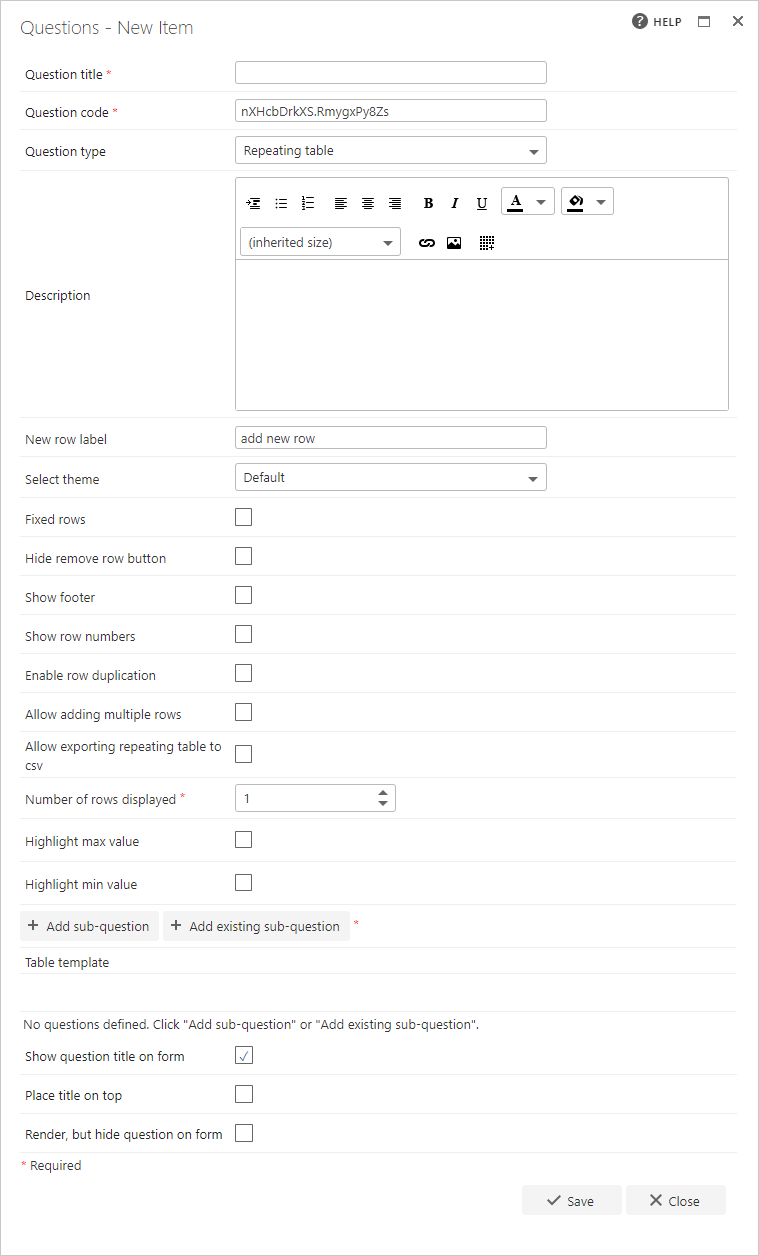 **Question title**: each question must have a title. It's a required field and will appear on the form as a label when the user fills in the question
**Question code**: each question needs a unique code. One is generated by default when you start creating a new question, but you can overwrite this and give it a different code, if you prefer. The question code won't appear on the form itself, but you can use it to search and filter by when adding questions
**Question type**: repeating table
**Required**: you need to specify whether the question is required or not. If you set a question as required, the user must provide an answer to it on the form in order to be able to submit the form. However, the user can save as draft without answering all required questions. If you try to submit a form without answering all required questions, an error message will appear showing a list of questions that haven't been answered
**Question description**: it's optional whether you enter a description or not. The description is used as a tooltip on the form and will add an exclamation point beside the question on the form. If the user clicks on the exclamation point, the description (tool tip) will appear
**New row label**: when you see a repeating table question in a form, there's typically a button to add additional rows. The standard label is "add new row", but if you'd prefer different text, enter it here
**Select theme**: you can select a theme to determine how the repeating table is presented in the form
**Fixed rows**: check this option if you want a fixed number of rows available. This prevents the user from adding or deleting rows
**Hide remove row button**: if you've set a fixed number of rows, you may not want users to remove any of those rows. To prevent this, you can hide the remove row button, which would otherwise allow the user to remove a row
**Show footer**: you can use the footer to add text boxes or expression boxes that sum the values in a column, or you can add questions to the footer row. The footer doesn't appear by default, so check this option if you want to turn it on
**Show row numbers**: by default, row numbers are not displayed. If you check this option, they'll be added. In the image below, the table on the left has row numbers displayed, whereas the table on the right doesn't
**Enable row duplication**: if checked, you'll see a duplicate button at the end of each row. This allows you to copy the current row and add a new one directly below with the same values
**Allow adding multiple rows**: check this option if you want to allow the user to add several rows at the same time, rather than adding them one at a time
**Allow exporting repeating table to csv**: displays a button on the repeating table to let users export the content of the repeating table to a .csv (comma separated value) file
**Number of rows displayed**: set the default number of rows to be displayed. It must be at least 1
**Highlight max value:** this option allows you to select a color to highlight the highest number value displayed in a repeating table row
**Highlight min value:** this option allows you to select a color to highlight the lowest number value displayed in a repeating table row
Highlighting the max/min value is only supported by the number question and the single line of text question, assuming it only contains a numeric value.
**Show question title on form**: by default, the question title appears to the left of the input box, which in this case is the entire repeating table. If you opt not to show the question title, the repeating table itself moves to the left and appears under the other question titles. You can see an example of both in the screen below.
## Table questions
As the repeating table will display in a tabular format, you will need to add sub-questions that will essentially be the "columns".
You can either **add sub-questions** or **add existing sub-questions**, to reuse existing questions.
**Question title**: each question must have a title. It's a required field and will appear on the form as a label when the user fills in the question
**Question code**: each question needs a unique code. One is generated by default when you start creating a new question, but you can overwrite this and give it a different code, if you prefer. The question code won't appear on the form itself, but you can use it to search and filter by when adding questions
**Question type**: repeating table
**Required**: you need to specify whether the question is required or not. If you set a question as required, the user must provide an answer to it on the form in order to be able to submit the form. However, the user can save as draft without answering all required questions. If you try to submit a form without answering all required questions, an error message will appear showing a list of questions that haven't been answered
**Question description**: it's optional whether you enter a description or not. The description is used as a tooltip on the form and will add an exclamation point beside the question on the form. If the user clicks on the exclamation point, the description (tool tip) will appear
**New row label**: when you see a repeating table question in a form, there's typically a button to add additional rows. The standard label is "add new row", but if you'd prefer different text, enter it here
**Select theme**: you can select a theme to determine how the repeating table is presented in the form
**Fixed rows**: check this option if you want a fixed number of rows available. This prevents the user from adding or deleting rows
**Hide remove row button**: if you've set a fixed number of rows, you may not want users to remove any of those rows. To prevent this, you can hide the remove row button, which would otherwise allow the user to remove a row
**Show footer**: you can use the footer to add text boxes or expression boxes that sum the values in a column, or you can add questions to the footer row. The footer doesn't appear by default, so check this option if you want to turn it on
**Show row numbers**: by default, row numbers are not displayed. If you check this option, they'll be added. In the image below, the table on the left has row numbers displayed, whereas the table on the right doesn't
**Enable row duplication**: if checked, you'll see a duplicate button at the end of each row. This allows you to copy the current row and add a new one directly below with the same values
**Allow adding multiple rows**: check this option if you want to allow the user to add several rows at the same time, rather than adding them one at a time
**Allow exporting repeating table to csv**: displays a button on the repeating table to let users export the content of the repeating table to a .csv (comma separated value) file
**Number of rows displayed**: set the default number of rows to be displayed. It must be at least 1
**Highlight max value:** this option allows you to select a color to highlight the highest number value displayed in a repeating table row
**Highlight min value:** this option allows you to select a color to highlight the lowest number value displayed in a repeating table row
Highlighting the max/min value is only supported by the number question and the single line of text question, assuming it only contains a numeric value.
**Show question title on form**: by default, the question title appears to the left of the input box, which in this case is the entire repeating table. If you opt not to show the question title, the repeating table itself moves to the left and appears under the other question titles. You can see an example of both in the screen below.
## Table questions
As the repeating table will display in a tabular format, you will need to add sub-questions that will essentially be the "columns".
You can either **add sub-questions** or **add existing sub-questions**, to reuse existing questions.
 If you click **add sub-question**, the question editor opens, allowing you to create a new question.
Once you save that question, it brings you back to the main question, i.e. the repeating table question. You'll now see the added question displayed as part of the table template.
If you click **add sub-question**, the question editor opens, allowing you to create a new question.
Once you save that question, it brings you back to the main question, i.e. the repeating table question. You'll now see the added question displayed as part of the table template.
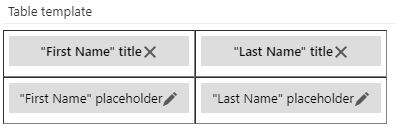 * If you want to remove the question again, click the x beside the question's name
* To edit the question, click the pen beside the placeholder
If you click **add existing sub-question**, a question search screen opens.
* Enter the question's name or part of the name to search for questions
* Use the check-box beside the relevant question(s) to add them to the repeating table
* Use the arrows at the bottom of the screen to move between pages
* If you want to remove the question again, click the x beside the question's name
* To edit the question, click the pen beside the placeholder
If you click **add existing sub-question**, a question search screen opens.
* Enter the question's name or part of the name to search for questions
* Use the check-box beside the relevant question(s) to add them to the repeating table
* Use the arrows at the bottom of the screen to move between pages
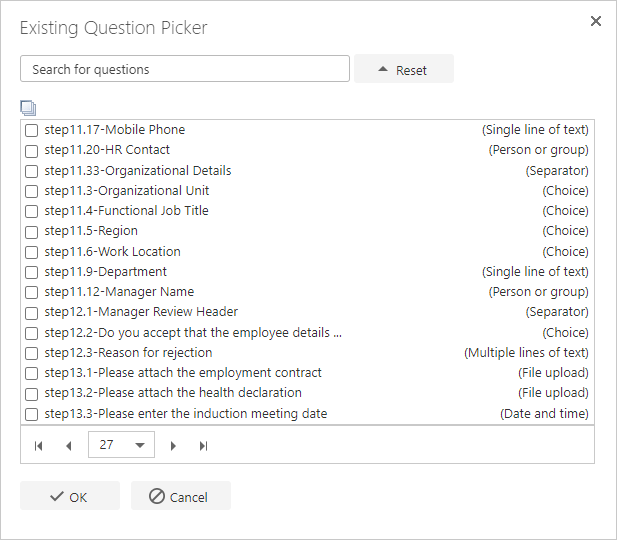 Once you've selected the relevant question(s), click OK. You'll be returned to the main repeating table question, and the questions will have been added.
You can reorder these questions by clicking and dragging the question title and placeholder into the relevant position.
Once you've selected the relevant question(s), click OK. You'll be returned to the main repeating table question, and the questions will have been added.
You can reorder these questions by clicking and dragging the question title and placeholder into the relevant position.
 ## Hiding repeating table question
Unlike regular questions, sub-questions in a repeating table should be hidden using the eye icon inside the repeating table question's editor, not the button normally used in the Flow Designer.
Using the Flow Designer option will hide the questions, but won't fully hide the entire column on the form. To fully hide the column, use the hide option inside the repeating table editor's table template.
This method also keeps the sub-question's functionality, so it can still be used to set/get values and do calculations. However, it won't be included when exporting the repeating table to CSV.
Once you've entered all the relevant information, click save. If you don't want to save the question or the changes you've made, click close.
The repeating table question is a more complex question type than other question types, as it contains a number of other question types in its configuration. Because of this, the performance of your form may be affected.
## Hiding repeating table question
Unlike regular questions, sub-questions in a repeating table should be hidden using the eye icon inside the repeating table question's editor, not the button normally used in the Flow Designer.
Using the Flow Designer option will hide the questions, but won't fully hide the entire column on the form. To fully hide the column, use the hide option inside the repeating table editor's table template.
This method also keeps the sub-question's functionality, so it can still be used to set/get values and do calculations. However, it won't be included when exporting the repeating table to CSV.
Once you've entered all the relevant information, click save. If you don't want to save the question or the changes you've made, click close.
The repeating table question is a more complex question type than other question types, as it contains a number of other question types in its configuration. Because of this, the performance of your form may be affected.