> ## Documentation Index
> Fetch the complete documentation index at: https://docs.flowforma.com/llms.txt
> Use this file to discover all available pages before exploring further.
# Calculated question
> Use the Calculated question to perform maths on number questions, concatenate text, or generate hyperlinks, with number, currency, and percentage output formats.
The Calculated question can be used to perform mathematical operations on number questions, concatenate strings with text questions, and generate hyperlinks to display on the form.
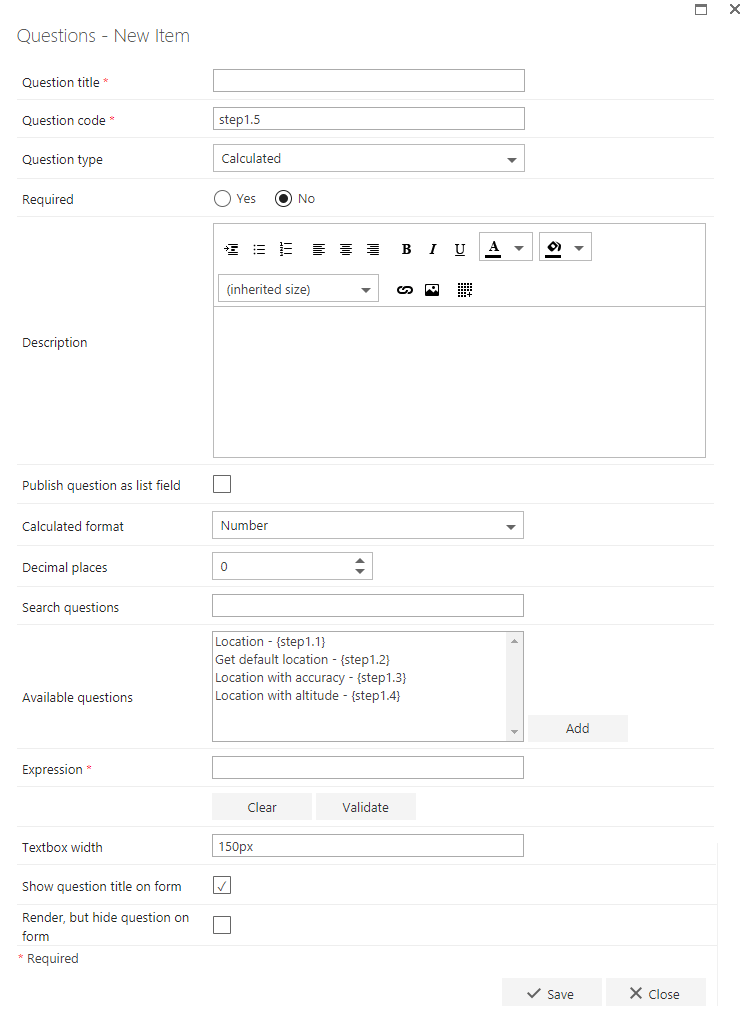 **Question title:** each question must have a title. It's a required field and appears on the form as a label when users fill in the question.
**Question code:** each question needs a unique code. One is generated by default when you start creating a new question, but you can overwrite this and give it a different code if you prefer. The question code doesn't appear on the form itself, but you can use it to search and filter when adding existing questions.
**Question type:** lookup.
**Required:** you need to specify whether the question is required. If you set a question as required, the user must provide an answer to it on the form in order to submit the form. However, the user can still save the form as a draft without answering required questions. If you try to submit a form without answering all required questions, an error message will show a list of required questions that haven't been answered.
**Question description:** it's optional whether you enter a description. The description is used as a tooltip on the form and adds an exclamation point beside the question on the form. If the user clicks on the exclamation point, the description entered (tooltip) will appear.
**Calculated format**: this option allows you to decide the output format of the calculation. The options are **number**, **text**, **currency**, **percentage**, and **hyperlink**. A detailed explanation of each format is available below.
**Search questions:** you can search for questions either by typing the question title, or the question code. This is case sensitive.
**Available questions:** displays a list of available questions to use. All questions in the flow appear if the search is blank, otherwise only questions matching the search term are displayed.
**Expression:** the expression builder allows you to build an expression based on questions.
Once you've found a question you want to include in the expression, click **Add**. The question code will be added to the expression.
Once you've built the expression, you can click **Validate** to check the structure of the expression. The system substitutes the numeral "2" for all questions in the expression and attempts to evaluate it. If successful, you'll see the result displayed. You can continue to add question codes and edit the expression until you're happy with the result.
You can also click **Clear** to remove the current expression if you need to start again.
**Textbox width:** sets the width of the answer field on the form.
**Show question title on form:** check this option if you want to display the question's title to the left of the question's input field. If you uncheck this option, the input field moves to the left and appears under the other questions/question titles.
**Render, but hide question on form:** if you check this option, the question will behave as if displayed by default. Default value, publishing, and calculation will apply despite the question not being displayed on the form.
## Number
The number format displays the output of the calculation as a decimal number.
There is one additional configuration option available if number is selected.
**Decimal places:** you can decide how many decimal places you want to be displayed.
The number format should be selected if you wish to perform mathematical operations on numbers, using questions from your form. You can manually edit the expression by adding operators such as +, -, \*, /.
You can also add constants (decimal numbers) and parentheses.
An example would be subtracting the expected cost from the final cost to calculate the difference.
## Text
The text format will display the output of the calculation as a text string.
There are no additional configuration options available if text is selected.
The text format should be selected if you wish to perform string concatenation with text.
An example would be concatenating a first name with a last name to calculate the full name.
Numbers entered will be treated as characters, so {firstName}+2 will output "bob2".
## Currency
The currency format will display the output of the calculation as a decimal number including a currency symbol.
There are additional configuration options available if currency is selected.
**Currency:** you can choose which currency you wish to be displayed, options include:
* US Dollar - \$
* Australian Dollar - \$
* Canadian Dollar - \$
* New Zealand Dollar - \$
* Euro - €
* Japanese Yen - ¥
* Pound Sterling - £
* Nigerian Naira - ₦
* Chinese Yuan Renminbi - ¥
* Swiss Franc - CHF
* Singapore Dollar - S\$
**Decimal places:** you can decide how many decimal places you want to be displayed.
The currency format is similar to the number format but the output will display the selected currency's symbol with the calculated value.
## Percentage
The percentage format will display the output of the calculation as a decimal number including a percentage symbol.
There is one additional configuration option available if percentage is selected.
**Decimal places:** you can decide how many decimal places you want to be displayed.
The percentage format is similar to the number format but the output will display a percentage symbol % with the calculated value.
## Hyperlink
The hyperlink format will display a clickable link on the form that users can use to open a specified URL.
The URL for the hyperlink can be manually entered if it is a static URL, for example to link users to a specific document.
Alternatively, you can generate the link by entering part of the URL into the expression, and using questions or the available tokens to change where the link navigates to.
There are additional configuration options available if hyperlink is selected.
**Label:** this will be displayed on the form as the link title - for example "Click here".
**Expression tokens:** there are tokens available to use when generating the hyperlink.
**\{\{FormID}}:** replaced by the current form's form ID.
**\{\{StepID}}:** replaced by the current step's step ID.
**\{\{FlowTitle}}:** replaced by the flow's title.
**\{\{StepTitle}}:** replaced by the step's title.
**\{\{FormTitle}}:** replaced by the form's title (prefix + form ID).
**\{\{FlowFormaUrl}}:** replaced by the full URL for where the FlowForma app is installed - "…yourcompany.sharepoint.com/sites/hr/leaverequest/flowforma"
**\{\{FlowFormaParentUrl}}:** replaced by the full URL of the parent site to where the FlowForma app is installed - "…yourcompany.sharepoint.com/sites/hr/leaverequest"
**\{\{FlowFormaSiteCollectionRoot}}:** replaced by the full URL of the site collection to where the FlowForma app is installed - "…yourcompany.sharepoint.com/sites/hr"
While tokens in FlowForma are generally used with a single set of curly brackets, tokens for the hyperlink require a double set of curly brackets, so they are not confused with questions codes in the expression.
**Notes about calculated questions**
In order to see the result of a calculated question, ensure that:
* All questions included in the expression are visible or rendered (not hidden) in the flow
* The calculated question is visible or rendered
If you want to use questions that you don't want displayed on the form, you must hide these questions using the **Render, but hide question on form** option.
If any of these conditions are not met, the calculation will not work.
We also recommend that you do not reuse calculated questions in other steps, as the calculation will still point to the questions in the previous step. As a result, modifications to the questions included in the expression will not be reflected in the calculated question displayed in the current step.
**Question title:** each question must have a title. It's a required field and appears on the form as a label when users fill in the question.
**Question code:** each question needs a unique code. One is generated by default when you start creating a new question, but you can overwrite this and give it a different code if you prefer. The question code doesn't appear on the form itself, but you can use it to search and filter when adding existing questions.
**Question type:** lookup.
**Required:** you need to specify whether the question is required. If you set a question as required, the user must provide an answer to it on the form in order to submit the form. However, the user can still save the form as a draft without answering required questions. If you try to submit a form without answering all required questions, an error message will show a list of required questions that haven't been answered.
**Question description:** it's optional whether you enter a description. The description is used as a tooltip on the form and adds an exclamation point beside the question on the form. If the user clicks on the exclamation point, the description entered (tooltip) will appear.
**Calculated format**: this option allows you to decide the output format of the calculation. The options are **number**, **text**, **currency**, **percentage**, and **hyperlink**. A detailed explanation of each format is available below.
**Search questions:** you can search for questions either by typing the question title, or the question code. This is case sensitive.
**Available questions:** displays a list of available questions to use. All questions in the flow appear if the search is blank, otherwise only questions matching the search term are displayed.
**Expression:** the expression builder allows you to build an expression based on questions.
Once you've found a question you want to include in the expression, click **Add**. The question code will be added to the expression.
Once you've built the expression, you can click **Validate** to check the structure of the expression. The system substitutes the numeral "2" for all questions in the expression and attempts to evaluate it. If successful, you'll see the result displayed. You can continue to add question codes and edit the expression until you're happy with the result.
You can also click **Clear** to remove the current expression if you need to start again.
**Textbox width:** sets the width of the answer field on the form.
**Show question title on form:** check this option if you want to display the question's title to the left of the question's input field. If you uncheck this option, the input field moves to the left and appears under the other questions/question titles.
**Render, but hide question on form:** if you check this option, the question will behave as if displayed by default. Default value, publishing, and calculation will apply despite the question not being displayed on the form.
## Number
The number format displays the output of the calculation as a decimal number.
There is one additional configuration option available if number is selected.
**Decimal places:** you can decide how many decimal places you want to be displayed.
The number format should be selected if you wish to perform mathematical operations on numbers, using questions from your form. You can manually edit the expression by adding operators such as +, -, \*, /.
You can also add constants (decimal numbers) and parentheses.
An example would be subtracting the expected cost from the final cost to calculate the difference.
## Text
The text format will display the output of the calculation as a text string.
There are no additional configuration options available if text is selected.
The text format should be selected if you wish to perform string concatenation with text.
An example would be concatenating a first name with a last name to calculate the full name.
Numbers entered will be treated as characters, so {firstName}+2 will output "bob2".
## Currency
The currency format will display the output of the calculation as a decimal number including a currency symbol.
There are additional configuration options available if currency is selected.
**Currency:** you can choose which currency you wish to be displayed, options include:
* US Dollar - \$
* Australian Dollar - \$
* Canadian Dollar - \$
* New Zealand Dollar - \$
* Euro - €
* Japanese Yen - ¥
* Pound Sterling - £
* Nigerian Naira - ₦
* Chinese Yuan Renminbi - ¥
* Swiss Franc - CHF
* Singapore Dollar - S\$
**Decimal places:** you can decide how many decimal places you want to be displayed.
The currency format is similar to the number format but the output will display the selected currency's symbol with the calculated value.
## Percentage
The percentage format will display the output of the calculation as a decimal number including a percentage symbol.
There is one additional configuration option available if percentage is selected.
**Decimal places:** you can decide how many decimal places you want to be displayed.
The percentage format is similar to the number format but the output will display a percentage symbol % with the calculated value.
## Hyperlink
The hyperlink format will display a clickable link on the form that users can use to open a specified URL.
The URL for the hyperlink can be manually entered if it is a static URL, for example to link users to a specific document.
Alternatively, you can generate the link by entering part of the URL into the expression, and using questions or the available tokens to change where the link navigates to.
There are additional configuration options available if hyperlink is selected.
**Label:** this will be displayed on the form as the link title - for example "Click here".
**Expression tokens:** there are tokens available to use when generating the hyperlink.
**\{\{FormID}}:** replaced by the current form's form ID.
**\{\{StepID}}:** replaced by the current step's step ID.
**\{\{FlowTitle}}:** replaced by the flow's title.
**\{\{StepTitle}}:** replaced by the step's title.
**\{\{FormTitle}}:** replaced by the form's title (prefix + form ID).
**\{\{FlowFormaUrl}}:** replaced by the full URL for where the FlowForma app is installed - "…yourcompany.sharepoint.com/sites/hr/leaverequest/flowforma"
**\{\{FlowFormaParentUrl}}:** replaced by the full URL of the parent site to where the FlowForma app is installed - "…yourcompany.sharepoint.com/sites/hr/leaverequest"
**\{\{FlowFormaSiteCollectionRoot}}:** replaced by the full URL of the site collection to where the FlowForma app is installed - "…yourcompany.sharepoint.com/sites/hr"
While tokens in FlowForma are generally used with a single set of curly brackets, tokens for the hyperlink require a double set of curly brackets, so they are not confused with questions codes in the expression.
**Notes about calculated questions**
In order to see the result of a calculated question, ensure that:
* All questions included in the expression are visible or rendered (not hidden) in the flow
* The calculated question is visible or rendered
If you want to use questions that you don't want displayed on the form, you must hide these questions using the **Render, but hide question on form** option.
If any of these conditions are not met, the calculation will not work.
We also recommend that you do not reuse calculated questions in other steps, as the calculation will still point to the questions in the previous step. As a result, modifications to the questions included in the expression will not be reflected in the calculated question displayed in the current step.