> ## Documentation Index
> Fetch the complete documentation index at: https://docs.flowforma.com/llms.txt
> Use this file to discover all available pages before exploring further.
# Questions
> Questions are the fields you define on FlowForma flow steps; learn how question types work and how to add, order, show, hide, and disable them.
Within a step, a question is a field you define that will be used on a form. Questions are created by FlowForma administrators, who decide the question label and specify the question type.
The **question type** determines what attributes are available, how answers are collected, and how answers are validated. Some attributes are common to many questions, such as the **question title** or **question code**, while others are specific to a particular type.
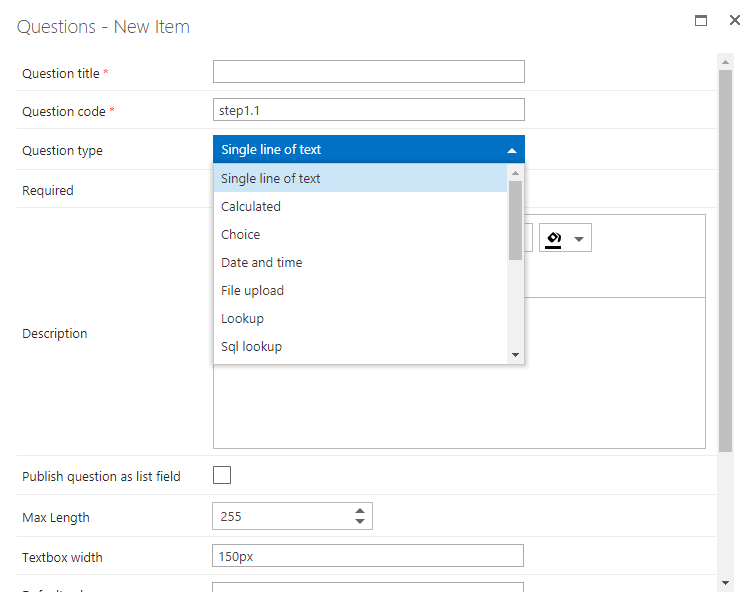
Once you start creating a question, you select the question type from a drop-down. The standard types are: calculated, choice, date and time, file upload, lookup, multiple lines of text, number, person or group, repeating table, separator, single line of text, SQL lookup, verify digital signature, and yes/no.
Additional question types are available in the **Add-ons** section of **[FlowForma settings](/product/flowforma-settings/overview)**; you deploy them to include them in the question type drop-down: Auto Number, Location, Date of birth, and Button. Others are included in feature packs: CRM lookup, [Get HubSpot contacts](/product/creating-flows/questions/feature-questions/get-hubspot-contacts), Voting, Voting results, and [Wet Signature](/product/creating-flows/questions/question-types/wet-signature).
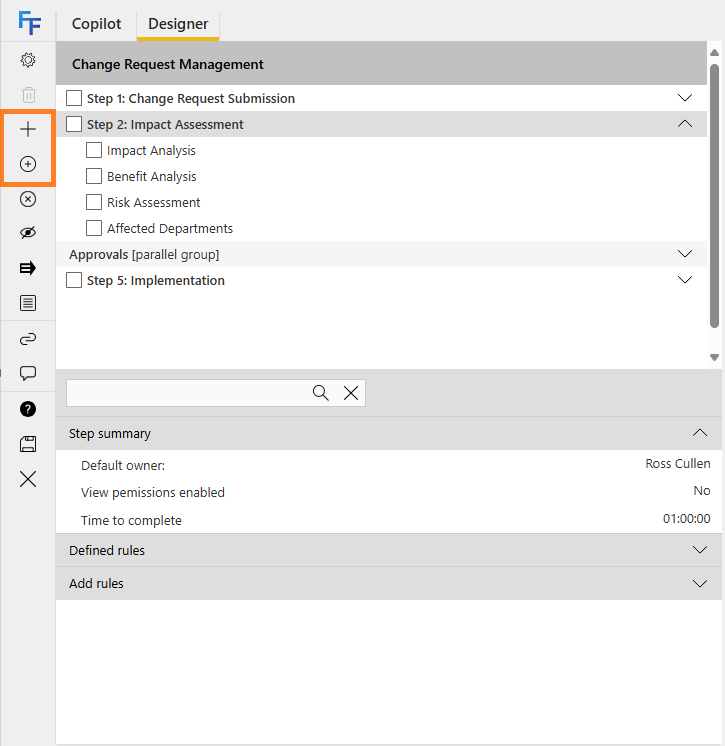
 You can add questions either directly in the questions list from the quick launch menu, or within the flow designer. In the flow designer, select the step you want to add a question to and click the **+** icon; or click the circled **+** icon to **add an existing question**.
 Fill in the information relevant to your question. The question title and question code are required.
* **Question title**: displayed before the input box when the form runs, and used to identify the question when you select it from the list.
* **Question code**: how the question is identified in FlowForma. It must be unique, so consider a naming convention for question codes.
* **Question type**: select the type of question to create. Additional fields become available based on the type.
* **Required**: select yes to make this a required field, or no to make it optional.
* **Description**: an optional description for clarification. If entered, an exclamation point appears next to the question title when the form runs; clicking it shows the description.
* **Publish question as list field**: use this question as a column in the forms list, so you see its answer on a form's row. The column can also be used for filtering views and reporting.
* **Show question title on form**: checked by default. Uncheck to hide the question title and show only the answer field: useful for repeating tables.
* **Render, but hide question on form**: if a question is hidden in the flow designer, its default value and calculations are not applied. This option renders the question while hiding it on the form: useful for hidden calculated questions, published questions, or questions with a default value.
Based on the question type, you may have additional fields to complete. Once you've added all relevant information, click **Save**; the question appears in the flow designer view. To discard, click **Cancel**.
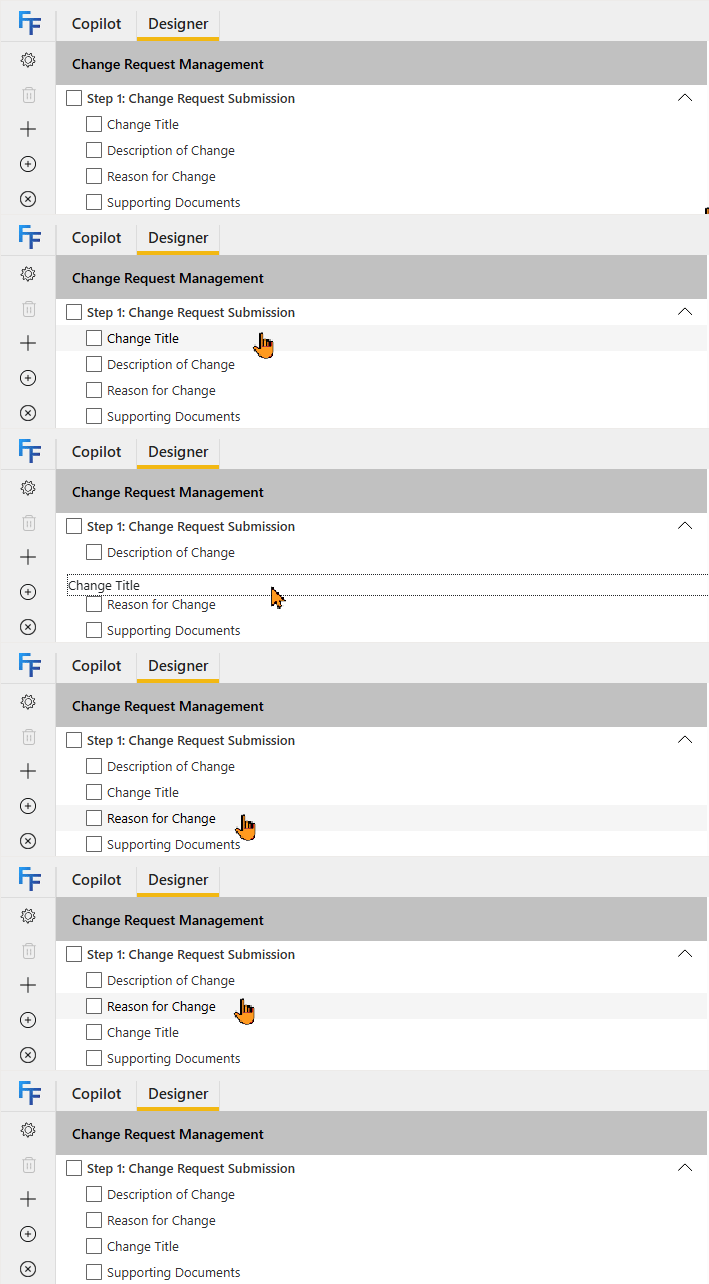
You can change the order of questions by drag-and-drop. Remember to click **Save** to submit the changes.
Fill in the information relevant to your question. The question title and question code are required.
* **Question title**: displayed before the input box when the form runs, and used to identify the question when you select it from the list.
* **Question code**: how the question is identified in FlowForma. It must be unique, so consider a naming convention for question codes.
* **Question type**: select the type of question to create. Additional fields become available based on the type.
* **Required**: select yes to make this a required field, or no to make it optional.
* **Description**: an optional description for clarification. If entered, an exclamation point appears next to the question title when the form runs; clicking it shows the description.
* **Publish question as list field**: use this question as a column in the forms list, so you see its answer on a form's row. The column can also be used for filtering views and reporting.
* **Show question title on form**: checked by default. Uncheck to hide the question title and show only the answer field: useful for repeating tables.
* **Render, but hide question on form**: if a question is hidden in the flow designer, its default value and calculations are not applied. This option renders the question while hiding it on the form: useful for hidden calculated questions, published questions, or questions with a default value.
Based on the question type, you may have additional fields to complete. Once you've added all relevant information, click **Save**; the question appears in the flow designer view. To discard, click **Cancel**.
You can change the order of questions by drag-and-drop. Remember to click **Save** to submit the changes.
 ## Show/hide and enable/disable
In the flow designer you can see all the questions included in the flow. By default all questions are visible and enabled.
* If you hide a question, it is not visible when a form is rendered.
* If you disable a question, its answer cannot be edited.
* If a question is visible but disabled, it appears on the form but greyed out.
* Ensure calculated fields are visible, or calculations based on them will not be evaluated.
* You can disable questions related to rules, but test the business logic to ensure the rules still operate as intended.
To **show or hide** a question, check the box beside it (you can select multiple) and click the show/hide icon. A
## Show/hide and enable/disable
In the flow designer you can see all the questions included in the flow. By default all questions are visible and enabled.
* If you hide a question, it is not visible when a form is rendered.
* If you disable a question, its answer cannot be edited.
* If a question is visible but disabled, it appears on the form but greyed out.
* Ensure calculated fields are visible, or calculations based on them will not be evaluated.
* You can disable questions related to rules, but test the business logic to ensure the rules still operate as intended.
To **show or hide** a question, check the box beside it (you can select multiple) and click the show/hide icon. A  means **show** (not shown beside a question, since showing is the default). A
  means **hide**: if you see it beside a question, that question is hidden.
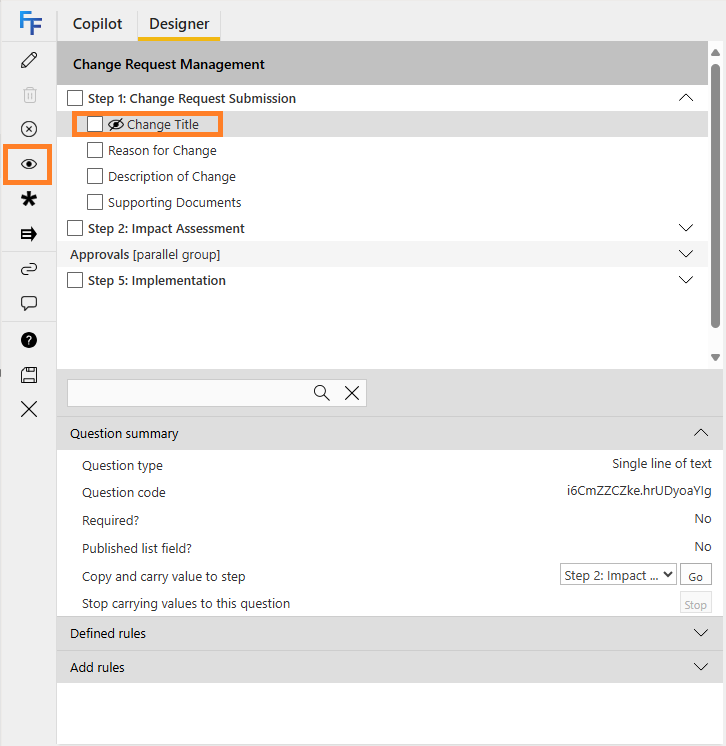 To **enable or disable** a question, check the box beside it (you can select multiple) and click the enable/disable icon.
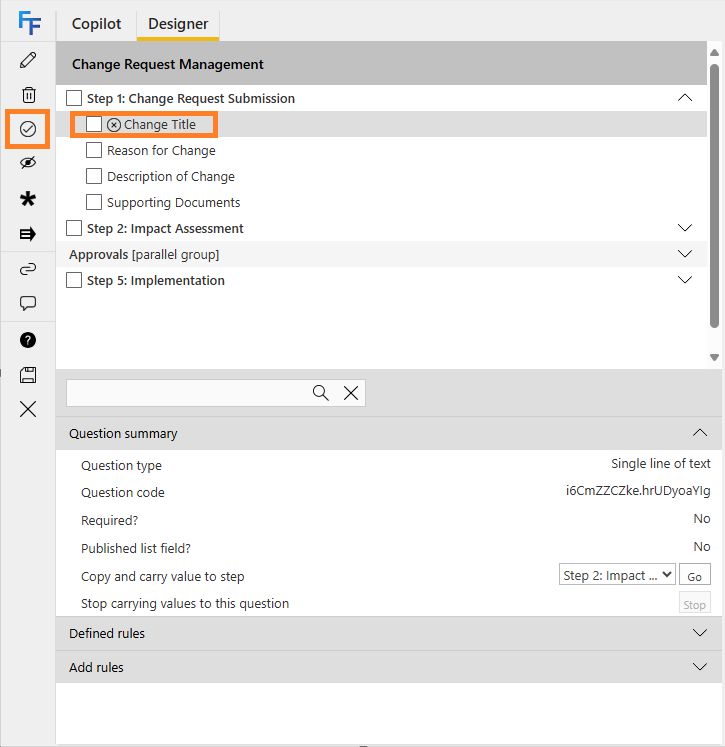 A
A  means **enable** (not shown beside a question, since enabled is the default). A
  means **disable**: if you see it beside a question, that question is disabled.