> ## Documentation Index
> Fetch the complete documentation index at: https://docs.flowforma.com/llms.txt
> Use this file to discover all available pages before exploring further.
# Attach document to step
> The Attach document to step business rule surfaces a document stored in a SharePoint library directly on a form step, referenced by URL tokens.
Use the attach document business rule to let the user attach a document stored in a SharePoint library.
 ## Title
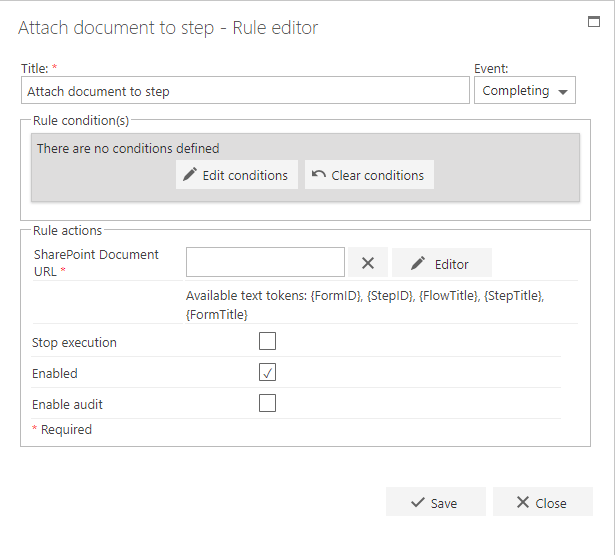
The first part of the business rule lets you define a **title** for your rule and select the event on which it operates. The default title is the standard **FlowForma** rule name; change it by deleting the text and entering your own.
In the **event** field you determine when the rule is executed. For a flow this can occur when the form is loaded, started, or completed. For a step this can occur when the step is started, saved, or completed. For questions it can occur when the question is updated.
## Rule condition(s)
The second part of the business rule lets you set conditions. These are not required, but if entered they control when the rule is executed in relation to other items in the form.
## Rule actions
* In the **SharePoint Document URL** field, type the URL of the document you want to use in your rule. You can use the following tokens to build the URL:
* **FormID**: the ID of the current form
* **StepID**: the step ID of the form where the document is located
* **FlowTitle**: the title of the flow
* **StepTitle**: the title of the step
* **FormTitle**: the title of the form
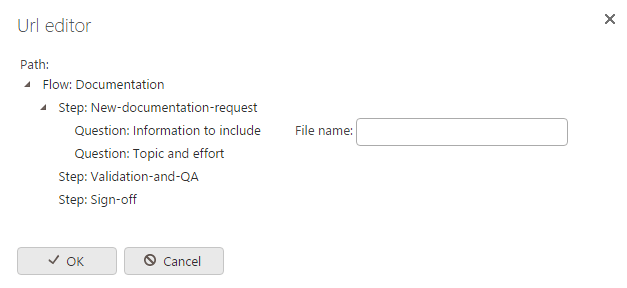
* To add the URL, the document must have been created in the same step or in a previous step using the **[Generate document](/product/creating-flows/business-rules/business-rule-types/communications-rules/generate-document)** business rule. Click **Editor** to help build the path to the document by selecting the relevant step.
## Title
The first part of the business rule lets you define a **title** for your rule and select the event on which it operates. The default title is the standard **FlowForma** rule name; change it by deleting the text and entering your own.
In the **event** field you determine when the rule is executed. For a flow this can occur when the form is loaded, started, or completed. For a step this can occur when the step is started, saved, or completed. For questions it can occur when the question is updated.
## Rule condition(s)
The second part of the business rule lets you set conditions. These are not required, but if entered they control when the rule is executed in relation to other items in the form.
## Rule actions
* In the **SharePoint Document URL** field, type the URL of the document you want to use in your rule. You can use the following tokens to build the URL:
* **FormID**: the ID of the current form
* **StepID**: the step ID of the form where the document is located
* **FlowTitle**: the title of the flow
* **StepTitle**: the title of the step
* **FormTitle**: the title of the form
* To add the URL, the document must have been created in the same step or in a previous step using the **[Generate document](/product/creating-flows/business-rules/business-rule-types/communications-rules/generate-document)** business rule. Click **Editor** to help build the path to the document by selecting the relevant step.
 * **Stop execution**: if stop execution is enabled and this rule is executed, no other rules are executed.
* **Enabled**: rules aren't saved to a list like questions and steps are, so if you want to stop a rule executing without deleting it, toggle this option to enable or disable the rule.
* **Enable audit**: if checked, a record is added to the audit trail when this rule is executed. This option is available when the Compliance feature pack is activated.
You must check the **Enable attachments** checkbox in the step definition for the step, or attachments will not be visible.
* **Stop execution**: if stop execution is enabled and this rule is executed, no other rules are executed.
* **Enabled**: rules aren't saved to a list like questions and steps are, so if you want to stop a rule executing without deleting it, toggle this option to enable or disable the rule.
* **Enable audit**: if checked, a record is added to the audit trail when this rule is executed. This option is available when the Compliance feature pack is activated.
You must check the **Enable attachments** checkbox in the step definition for the step, or attachments will not be visible.