> ## Documentation Index
> Fetch the complete documentation index at: https://docs.flowforma.com/llms.txt
> Use this file to discover all available pages before exploring further.
# Licensing Hub
> Manage FlowForma site and user licenses, feature activation, cost centre mapping, and usage reports through the Governance Licensing Hub.
Use the Licensing Hub to manage licensing for sites and users, as well as feature activation and usage reports based on cost centres.
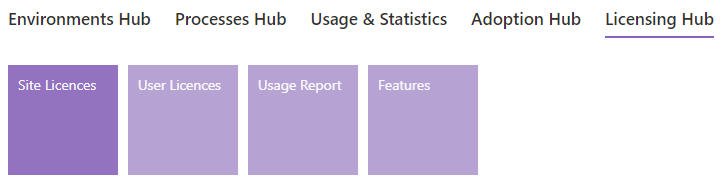 ## Site licenses
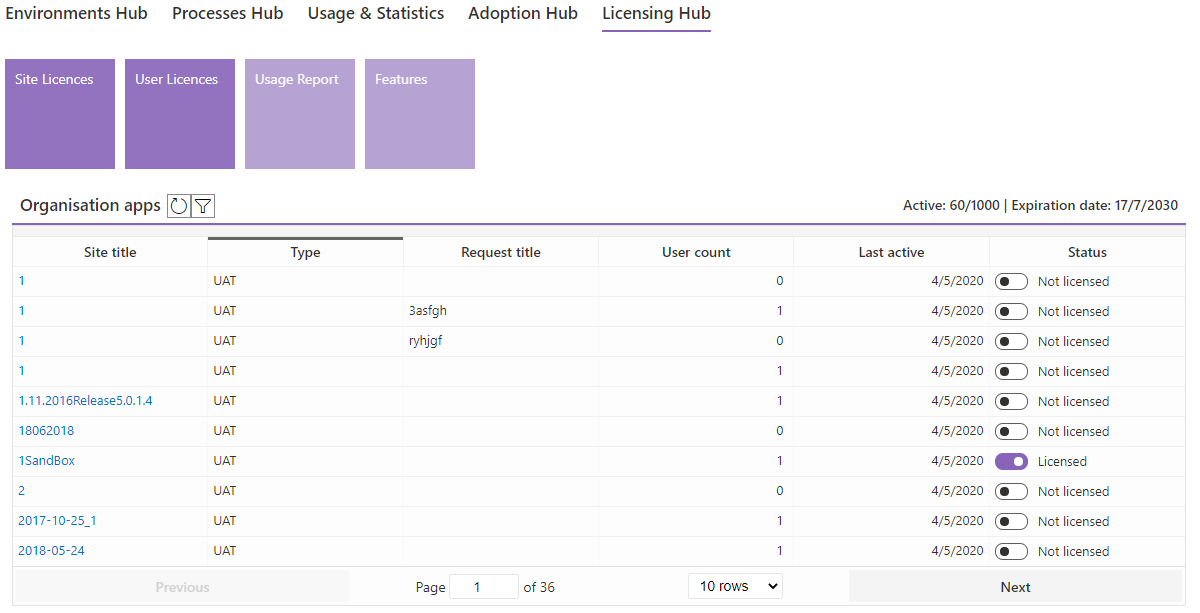 The table shows all the apps that are currently present on your tenancy.
Below the tiles is the title of the table, 'Organisation apps', followed by a
The table shows all the apps that are currently present on your tenancy.
Below the tiles is the title of the table, 'Organisation apps', followed by a  button to refresh the page and a
  button to allow filtering of the table.
You can then see a summary of the number of active apps on your tenancy: the first number is the number of active apps, the second is the maximum number of licensed apps allowed. The expiry date of the license is then displayed.
The columns in the table are as follows:
* **Site title**: the title of the site where the FlowForma app is installed.
* **Type**: the type of environment: the options available are Sandbox, UAT and Production. If environments have been created using [Adoption and Governance](/product/adoption-and-governance/overview), the type is set when the app is installed; if created outside of Adoption and Governance, it is set to Production by default.
* **Request title**: the title entered in the request that was submitted to request a new environment.
* **User count**: the number of users who have used this environment.
* **Last active**: the date and time when a user last accessed the environment.
* **Status**: the status of the individual environment, either Licensed or Not licensed.
## Licensing and unlicensing apps
You can license and unlicense apps in your tenancy using the slider
button to allow filtering of the table.
You can then see a summary of the number of active apps on your tenancy: the first number is the number of active apps, the second is the maximum number of licensed apps allowed. The expiry date of the license is then displayed.
The columns in the table are as follows:
* **Site title**: the title of the site where the FlowForma app is installed.
* **Type**: the type of environment: the options available are Sandbox, UAT and Production. If environments have been created using [Adoption and Governance](/product/adoption-and-governance/overview), the type is set when the app is installed; if created outside of Adoption and Governance, it is set to Production by default.
* **Request title**: the title entered in the request that was submitted to request a new environment.
* **User count**: the number of users who have used this environment.
* **Last active**: the date and time when a user last accessed the environment.
* **Status**: the status of the individual environment, either Licensed or Not licensed.
## Licensing and unlicensing apps
You can license and unlicense apps in your tenancy using the slider  in the Status column.
You can only license apps up to the maximum app count in your tenant license.
To license an app, toggle the slider for the app that is 'Not licensed' until Licensed is displayed. To unlicense an app, toggle the slider for the app that is licensed until Not licensed is displayed.
If you have reached your maximum app count, you may wish to unlicense apps that are not being used so you can use these licenses on apps you do want to use.
When you click the filtering button, the following filtering options are displayed.
in the Status column.
You can only license apps up to the maximum app count in your tenant license.
To license an app, toggle the slider for the app that is 'Not licensed' until Licensed is displayed. To unlicense an app, toggle the slider for the app that is licensed until Not licensed is displayed.
If you have reached your maximum app count, you may wish to unlicense apps that are not being used so you can use these licenses on apps you do want to use.
When you click the filtering button, the following filtering options are displayed.
 ## User licenses
 User licenses display the current number of active users against the total number of user licenses available, visible in the top right.
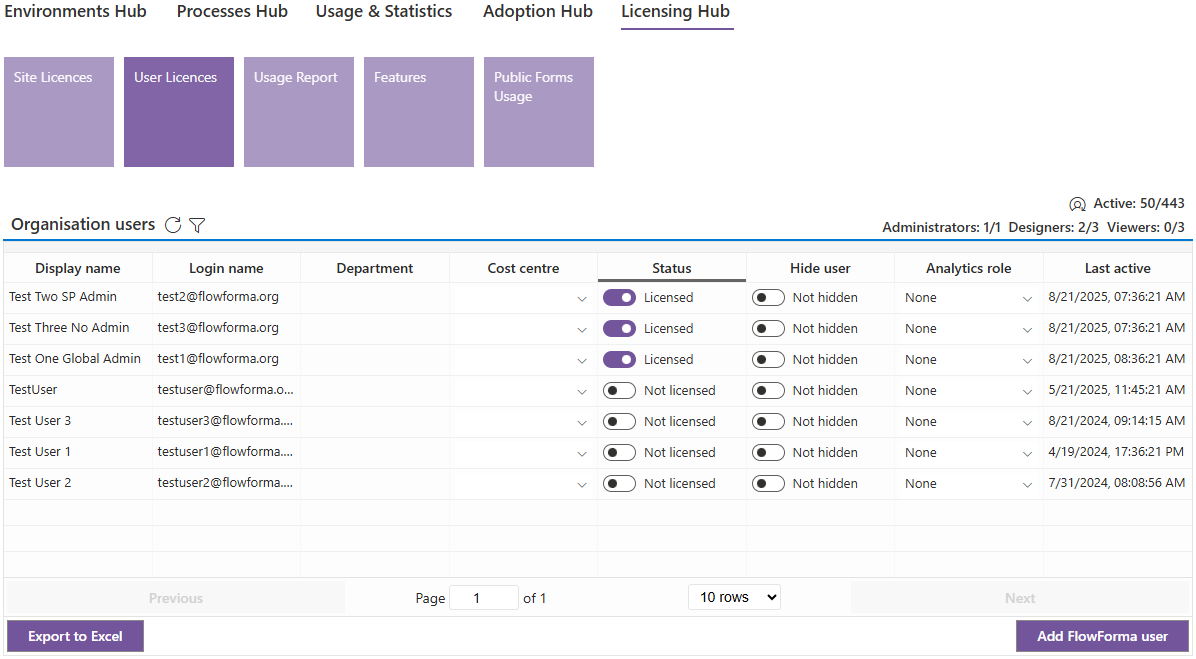
 You can also see a table with a similar view to the app licenses, displaying information about users.
* **Display name**: displays the user's first and last name.
* **Login name**: displays the email address of the user.
* **Department**: displays the department the user belongs to.
* **Cost centre**: displays the cost centre the user belongs to.
* **Status**: displays the status of the user's license.
* **Hide user**: if the user no longer works for your company, you can hide their entry in the user list.
* **Analytics role**: you can add or update the user's role in analytics.
* **Last active**: displays the date and time when the user last used FlowForma.
## Licensing and unlicensing users
Licenses in FlowForma are automatically assigned to users whenever they interact with the system, provided that a spare license is available. This assignment occurs when a user creates or opens a form, or when they open the Flow Designer.
You can unlicense a user through the Licensing Hub. Within the User Licensing panel, the Status column contains a toggle switch that allows you to mark the user for unlicensing. Once this is done, the user is not unlicensed immediately. Instead, a 90-day grace period is applied.
You can also see a table with a similar view to the app licenses, displaying information about users.
* **Display name**: displays the user's first and last name.
* **Login name**: displays the email address of the user.
* **Department**: displays the department the user belongs to.
* **Cost centre**: displays the cost centre the user belongs to.
* **Status**: displays the status of the user's license.
* **Hide user**: if the user no longer works for your company, you can hide their entry in the user list.
* **Analytics role**: you can add or update the user's role in analytics.
* **Last active**: displays the date and time when the user last used FlowForma.
## Licensing and unlicensing users
Licenses in FlowForma are automatically assigned to users whenever they interact with the system, provided that a spare license is available. This assignment occurs when a user creates or opens a form, or when they open the Flow Designer.
You can unlicense a user through the Licensing Hub. Within the User Licensing panel, the Status column contains a toggle switch that allows you to mark the user for unlicensing. Once this is done, the user is not unlicensed immediately. Instead, a 90-day grace period is applied.
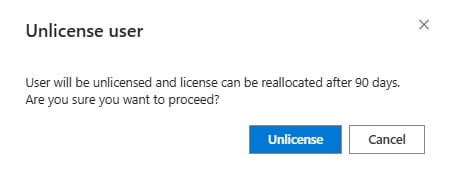 During this 90-day period, the user remains licensed and continues to consume a license. This delay is intentional and is designed to prevent automation abuse, such as repeatedly toggling licenses on and off to work around licensing limits. Once the 90 days has passed, the license is released and made available for reassignment.
**Note:** When a user is unlicensed, this only prevents their ability to interact with forms and the Flow Designer. It is not a permission feature to block access to the FlowForma site, so an unlicensed user may still navigate to the forms list, and any other list on the FlowForma site, if they are in the relevant SharePoint group.
## Analytics role management
The **Analytics role** column in the user table lets you assign an analytics role to a user. Click the drop-down in the row for the user and choose one of the following roles:
* **Viewer**: can view analytics.
* **Designer**: can design and build analytics content.
* **Admin**: has full analytics administration access.
Each role has its own capacity limit, a separate allowance for Viewers, Designers and Administrators. When the remaining allowance for a role reaches zero, that role is disabled in the drop-down and can no longer be assigned until an existing user's role is changed or removed to free up capacity.
## Navigation
Below are options for navigating through the table. By default 10 rows are displayed; you can navigate to the next page or previous page.
During this 90-day period, the user remains licensed and continues to consume a license. This delay is intentional and is designed to prevent automation abuse, such as repeatedly toggling licenses on and off to work around licensing limits. Once the 90 days has passed, the license is released and made available for reassignment.
**Note:** When a user is unlicensed, this only prevents their ability to interact with forms and the Flow Designer. It is not a permission feature to block access to the FlowForma site, so an unlicensed user may still navigate to the forms list, and any other list on the FlowForma site, if they are in the relevant SharePoint group.
## Analytics role management
The **Analytics role** column in the user table lets you assign an analytics role to a user. Click the drop-down in the row for the user and choose one of the following roles:
* **Viewer**: can view analytics.
* **Designer**: can design and build analytics content.
* **Admin**: has full analytics administration access.
Each role has its own capacity limit, a separate allowance for Viewers, Designers and Administrators. When the remaining allowance for a role reaches zero, that role is disabled in the drop-down and can no longer be assigned until an existing user's role is changed or removed to free up capacity.
## Navigation
Below are options for navigating through the table. By default 10 rows are displayed; you can navigate to the next page or previous page.
 You can also skip to a specific page using the number field for the page.
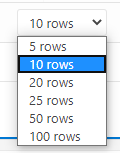
 You can increase the number of rows displayed per page with the dropdown.
 * **Export to Excel**: you can export the user license table. It will export the current filtered selection, even if it spans multiple pages.
* **Add FlowForma user**: you can add external users, used for secure accessible forms under [FlowForma Engage](/product/flowforma-engage).
## User Sync settings
[User Sync](/product/adoption-and-governance/user-sync) settings let FlowForma automatically detect when a licensed user's Azure Active Directory account has been deleted and free up their license for reuse. See [User Sync](/product/adoption-and-governance/user-sync) for setup details.
## Department / cost centre mapping
**Department / cost centre mapping** allows you to define a mapping between departments in your organization and cost centres, so their FlowForma usage is tracked and used with the built-in reports within the Governance app.
* **Export to Excel**: you can export the user license table. It will export the current filtered selection, even if it spans multiple pages.
* **Add FlowForma user**: you can add external users, used for secure accessible forms under [FlowForma Engage](/product/flowforma-engage).
## User Sync settings
[User Sync](/product/adoption-and-governance/user-sync) settings let FlowForma automatically detect when a licensed user's Azure Active Directory account has been deleted and free up their license for reuse. See [User Sync](/product/adoption-and-governance/user-sync) for setup details.
## Department / cost centre mapping
**Department / cost centre mapping** allows you to define a mapping between departments in your organization and cost centres, so their FlowForma usage is tracked and used with the built-in reports within the Governance app.
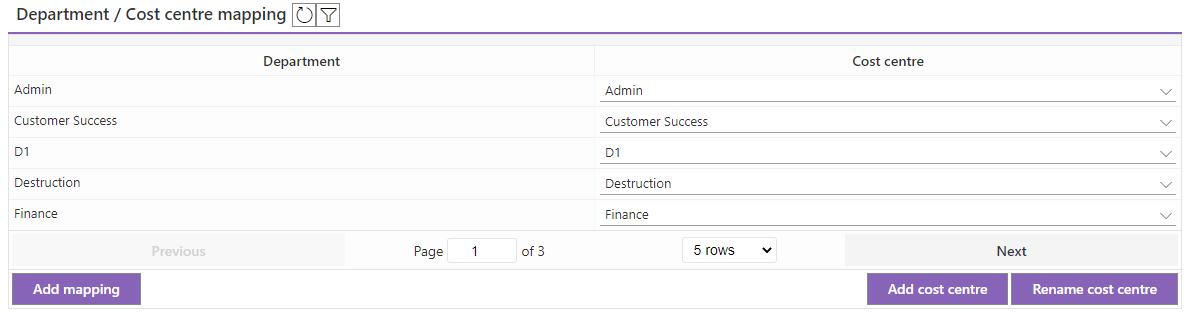 * **Add mapping**: enter a new department and map it to an existing cost centre.
* **Add cost centre**: create a new cost centre.
* **Rename cost centre**: rename an existing cost centre.
## Usage reports
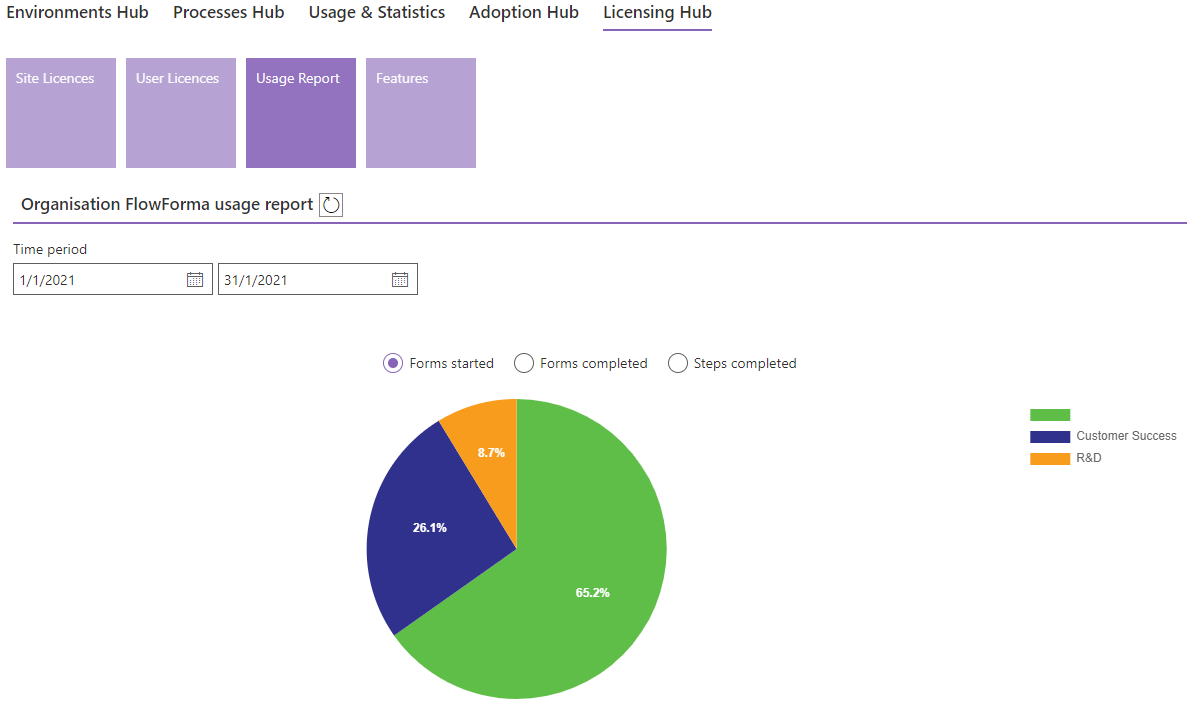
**Usage reports** allows you to view the usage of FlowForma based on **cost centres** that you define within your organization. You can view usage based on:
* Forms started
* Forms completed
* Steps completed
This may be useful if you wish to split the cost of your FlowForma license across departments based on usage. You can change the time period to view usage using a custom date range.
* **Add mapping**: enter a new department and map it to an existing cost centre.
* **Add cost centre**: create a new cost centre.
* **Rename cost centre**: rename an existing cost centre.
## Usage reports
**Usage reports** allows you to view the usage of FlowForma based on **cost centres** that you define within your organization. You can view usage based on:
* Forms started
* Forms completed
* Steps completed
This may be useful if you wish to split the cost of your FlowForma license across departments based on usage. You can change the time period to view usage using a custom date range.
 You can view a table of this information as shown below, which can then be **exported to Excel**.
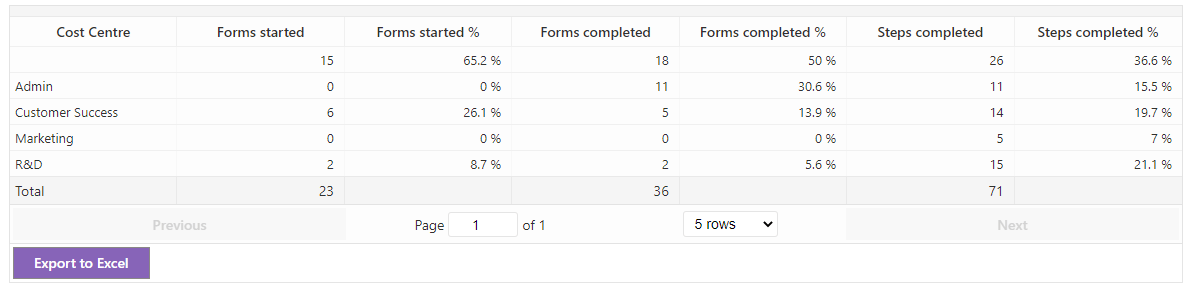 Cost centres are created and maintained on the User licensing tab within the Licensing Hub.
## Features
The Features tab allows you to view the features that are available within your tenant to be used.
Cost centres are created and maintained on the User licensing tab within the Licensing Hub.
## Features
The Features tab allows you to view the features that are available within your tenant to be used.
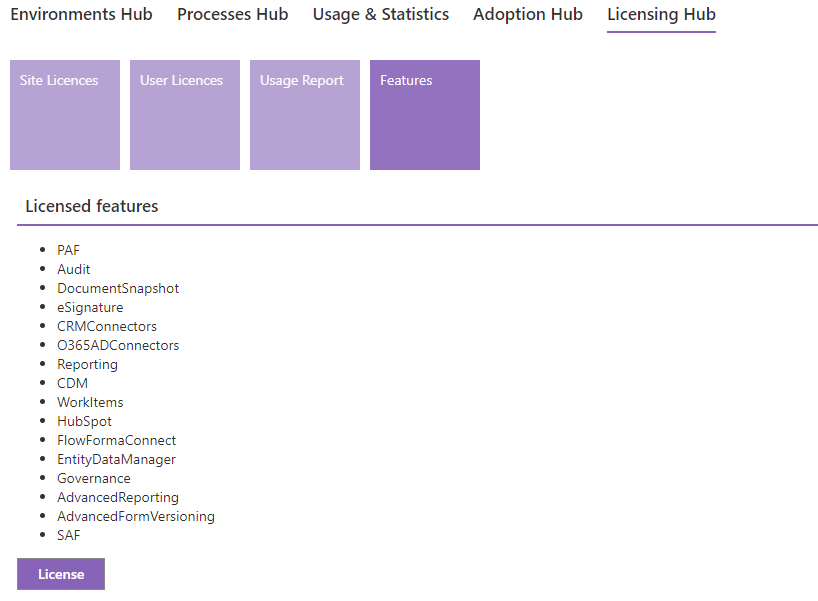 **License**: if you are given a feature activation key to enable another feature, you can use this License button to paste it.
You may be entitled to features that have not been activated on your site. If you have any doubts, you can contact support to make sure you have access to all the features you're entitled to.
**License**: if you are given a feature activation key to enable another feature, you can use this License button to paste it.
You may be entitled to features that have not been activated on your site. If you have any doubts, you can contact support to make sure you have access to all the features you're entitled to.