> ## Documentation Index
> Fetch the complete documentation index at: https://docs.flowforma.com/llms.txt
> Use this file to discover all available pages before exploring further.
# Installation issues - Granting app permissions
> Fix FlowForma install failures by enabling Azure Access Control and elevating app permissions through appinv.aspx so features like add/update list item work.
## Azure Access Control
FlowForma needs Azure Access Control (ACS) enabled, if it not enable the app can fail to install. To enable it, you will need to download the latest SharePoint Online Management Shell.
Once you have this, you can run the following commands to enable it:
```powershell theme={null}
Connect-SPOService https://Yourtenant-admin.sharepoint.com
Set-SPOTenant -DisableCustomAppAuthentication $false
```
After enabling, allow 5 minutes for it to take effect, you can then return to the SharePoint page and continue the installation.
## Elevating app permissions
A FlowForma app may requires higher permissions in order to complete installation and also to allow certain functionality to work (eg, using App Permissions in the add/update list item rule).
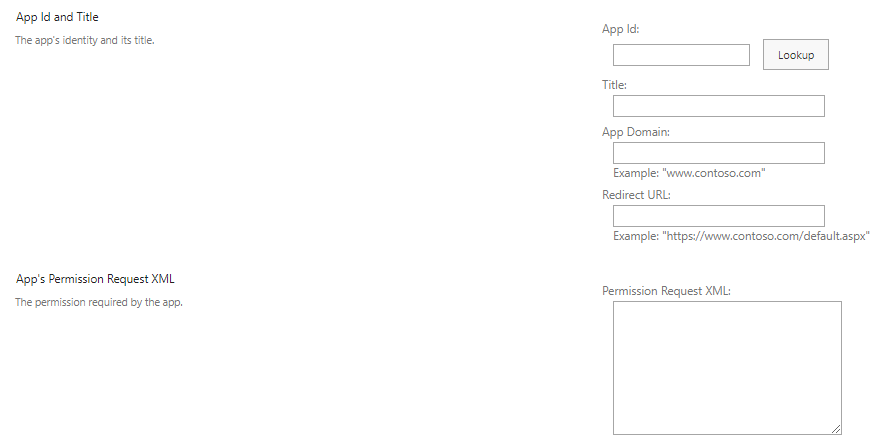
To do this, navigate to [https://yourtenant.sharepoint.com/\_layouts/15/appinv.aspx](https://yourtenant.sharepoint.com/_layouts/15/appinv.aspx) , and you will see the following:
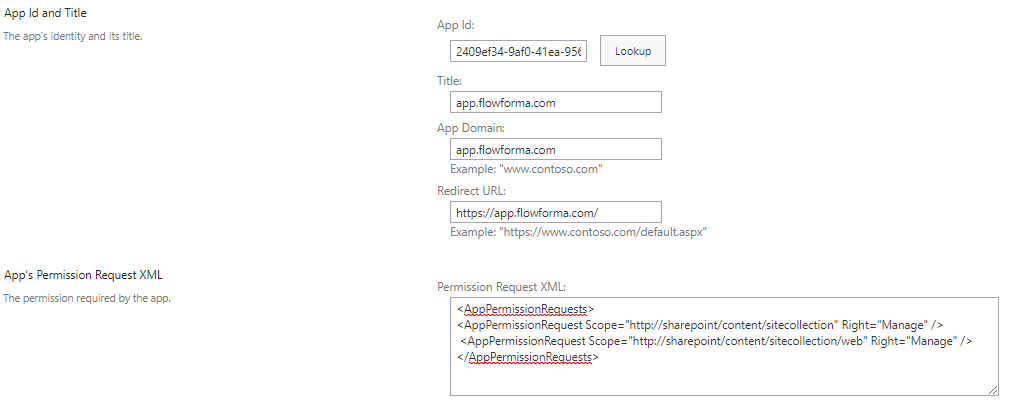
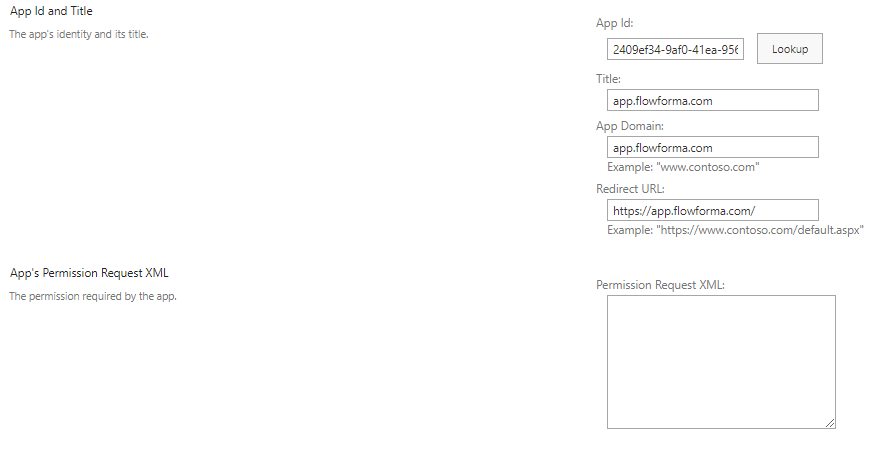
 Insert "2409ef34-9af0-41ea-9565-8b3af816a01b" without quotes into the **App Id** field and click lookup.
The **Title**, **App Domain**, and **Redirect URL** should auto-populate.
Insert "2409ef34-9af0-41ea-9565-8b3af816a01b" without quotes into the **App Id** field and click lookup.
The **Title**, **App Domain**, and **Redirect URL** should auto-populate.
 Next you will need to paste in the permissions you wish to allow in XML format.
Paste in the following:
```xml theme={null}
```
Then click **Create** in either top or bottom right.
Next you will need to paste in the permissions you wish to allow in XML format.
Paste in the following:
```xml theme={null}
```
Then click **Create** in either top or bottom right.