> ## Documentation Index
> Fetch the complete documentation index at: https://docs.flowforma.com/llms.txt
> Use this file to discover all available pages before exploring further.
# Restrict permissions to the all items view
> Modify the default All Items view and create personal administrator views to control which users can see confidential FlowForma forms in Office 365.
## Office 365 versus on-premise installation
For some processes, you may need to **restrict access** to the users to all the forms and especially if the data inside the form is confidential like a capex or a performance review flow.
For **on premise** installations, the **target audience** is often used to define which users can see the forms created from all users.
In **Office 365**, the target audience of a custom view can't be changed. As a result, once the users are added to the default **FlowForma generic users** group, they can all access the "All Items" view which contains all the forms.
To restrict permission to all forms, the public view "All Items" needs to be modified and personal views can then be created for administrators to view all items.
## Restrict permission to the default All Items view
To change this view, you need to go to the **All Items** view:
* Click on **All Forms** on the left ribbon; then click **Modifiy View** under the List tab in the top ribbon.
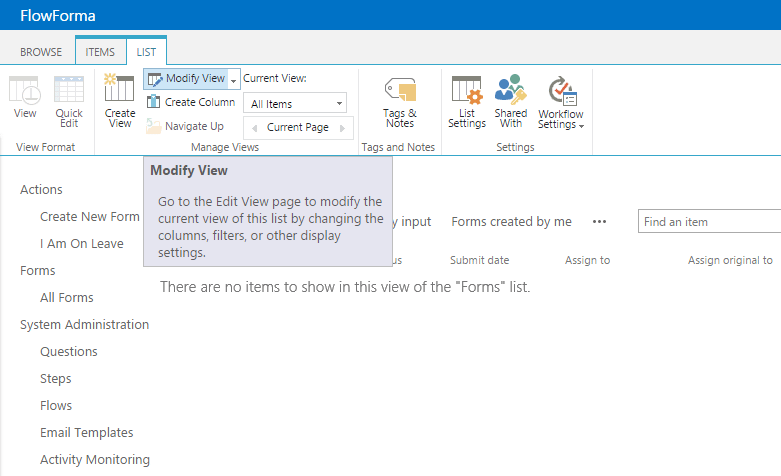 Note: make sure that you see **All Items** under current view.
* Change the view name from **All Items** to for instance **forms related to me**.
Note: make sure that you see **All Items** under current view.
* Change the view name from **All Items** to for instance **forms related to me**.
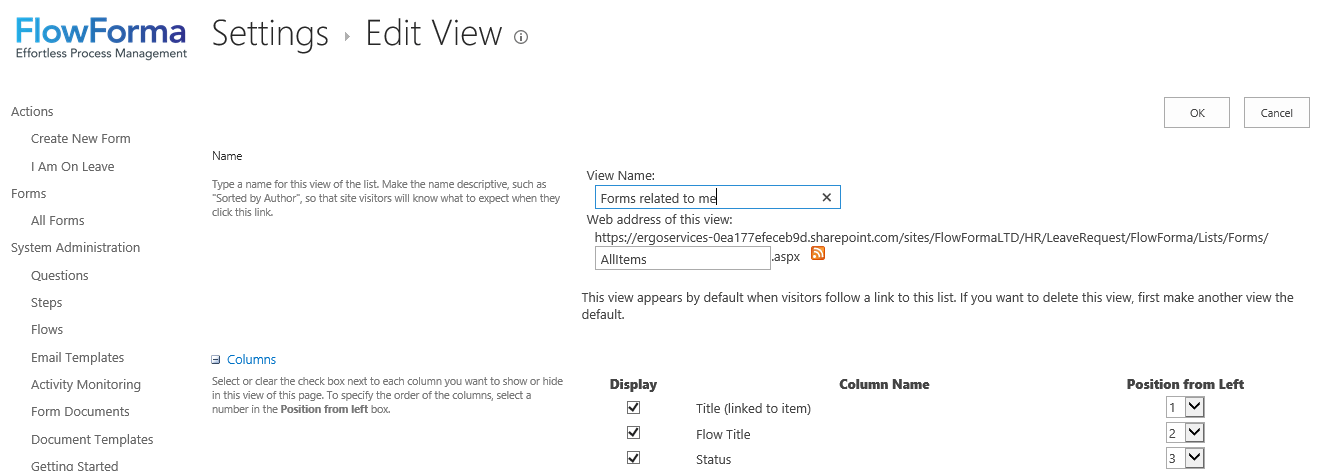 Note: you can change also the web address from **AllItems** to **FormsRelatedToMe** but this will have to be changed in the quick lunch menu as well.
* Under the Filter section, select the option **show items only when the following is true**. In the drop-down below, you can select **Created By** or another published field related to users (example: employee name) and type **\[Me]** to display only the items related to the user logged in.
Note: you can change also the web address from **AllItems** to **FormsRelatedToMe** but this will have to be changed in the quick lunch menu as well.
* Under the Filter section, select the option **show items only when the following is true**. In the drop-down below, you can select **Created By** or another published field related to users (example: employee name) and type **\[Me]** to display only the items related to the user logged in.
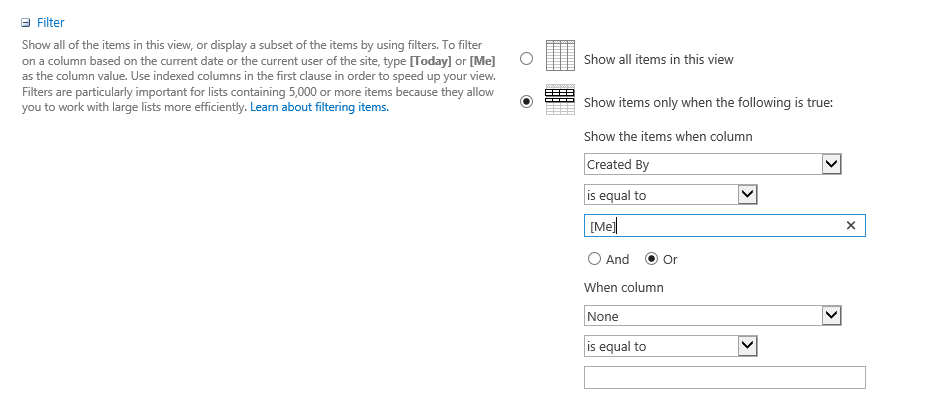 * Click **OK** to save the changes.
Note: **Forms related to me** is an example of a view filtered by user. You can change or add filters to make your own views.
## Create personal views for Administrators
To create a view with all items visible only for an Adminstrator user, here are the steps you need to follow:
* Log in with the adminstrator user account that needs to have access to all items and go to one of the custom views displaying Forms (**forms related to me** for instance).
* Go to the top ribbon and click **create view** under the list tab.
* Click **OK** to save the changes.
Note: **Forms related to me** is an example of a view filtered by user. You can change or add filters to make your own views.
## Create personal views for Administrators
To create a view with all items visible only for an Adminstrator user, here are the steps you need to follow:
* Log in with the adminstrator user account that needs to have access to all items and go to one of the custom views displaying Forms (**forms related to me** for instance).
* Go to the top ribbon and click **create view** under the list tab.
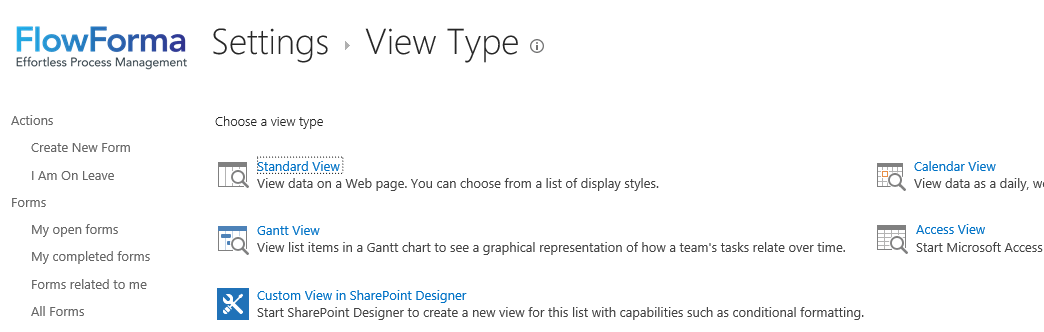
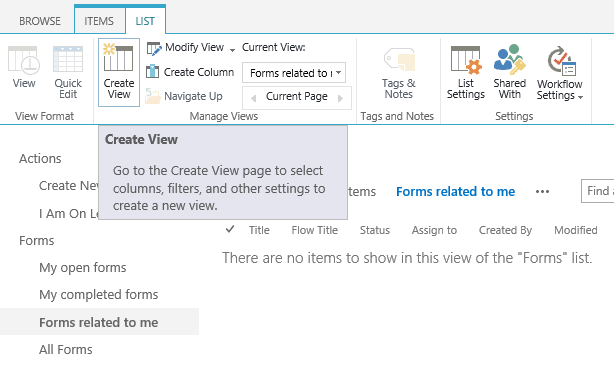 * Select **stardard view**.
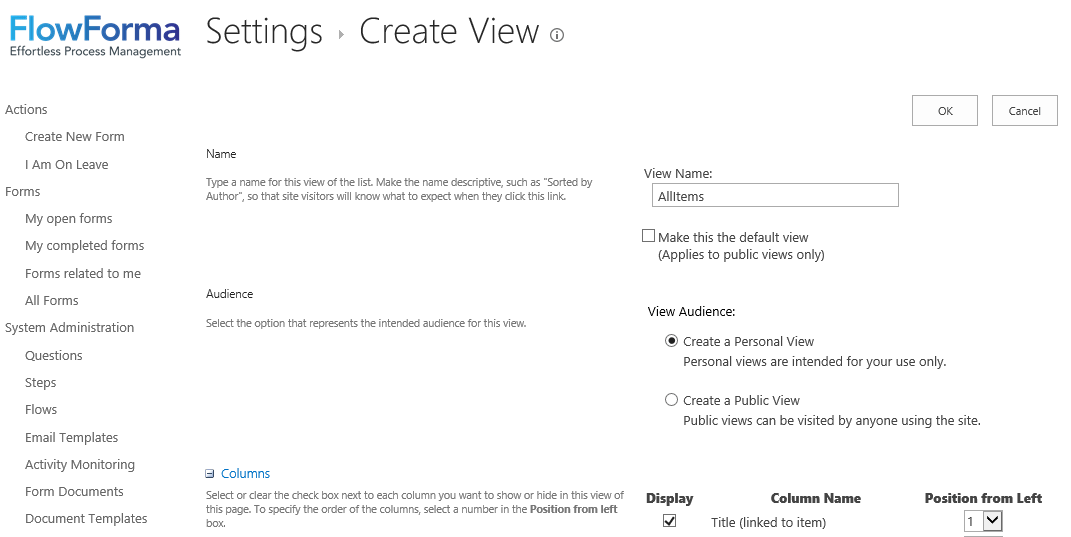
 * Add a new name to your view and select **create a personal view** under view audience.
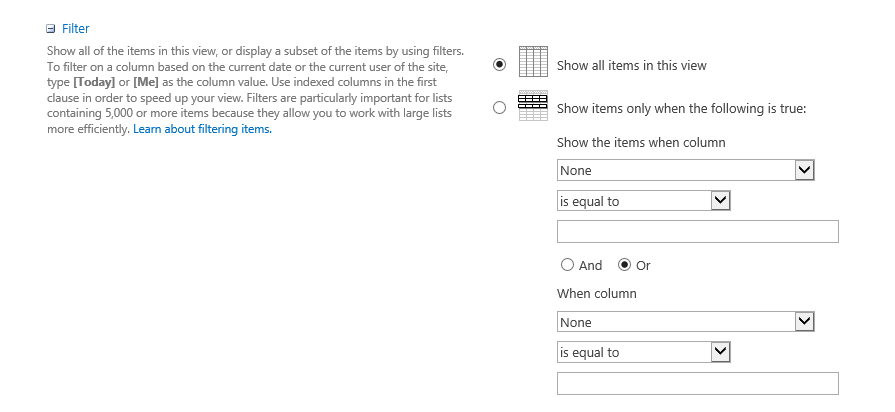
 * Select **show all items in this view** or select the filters that you want. For instance, where flow title is equal to the process name.
 * Click **OK** to save the changes.