> ## Documentation Index
> Fetch the complete documentation index at: https://docs.flowforma.com/llms.txt
> Use this file to discover all available pages before exploring further.
# Filter the All Items view to the current user
> Filter the default All Items view so users see their own FlowForma forms by default, and create personal views so administrators can still see every form.
The **All Items** view of the forms list shows every form to everyone in the **FlowForma generic users** group. In a busy list, users may prefer to see only their own forms by default. This article shows how to filter the **All Items** view to the current user, and how administrators can keep a personal view of every form.
**This changes what users see, not what they can access**
A view filter only hides forms from the list. Users can remove the filter with **Clear**, or create their own personal view with no filter, and still see every form. Do not use views to protect confidential data.
To restrict who can view and edit forms, for example for capex requests or performance reviews, use the [Security wizard](/product/security-wizard). The Security wizard does not protect [published questions](/product/creating-flows/questions/overview): their values are columns in the forms list, so anyone who can open the list can see them in a view. Do not publish questions that hold confidential data.
## Filter the All Items view to the current user
You need the **Manage Lists** permission to change a public view.
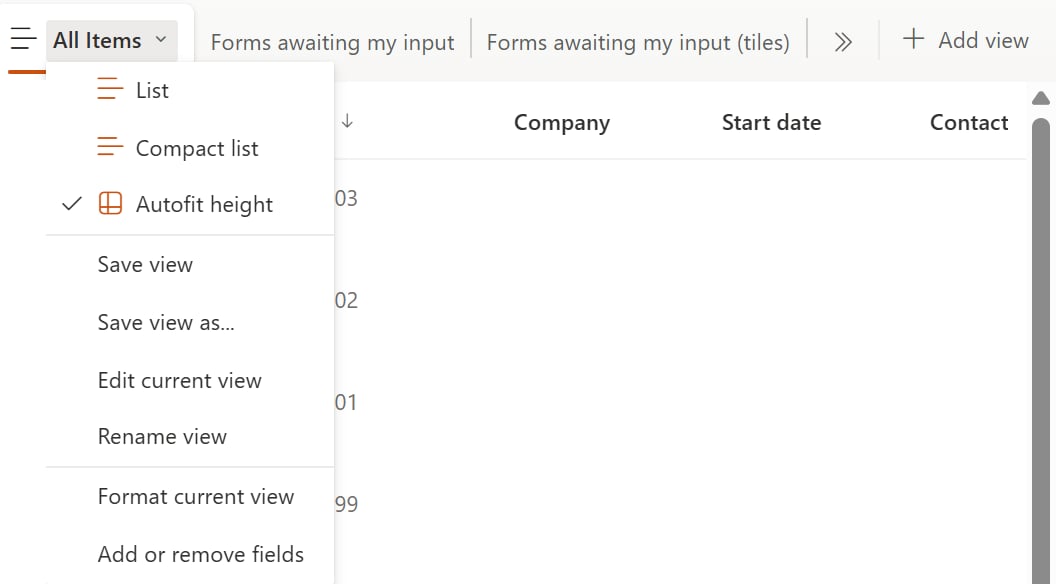
On your FlowForma site, go to **Forms** > **All forms** in the left-hand navigation. Make sure **All Items** is the selected view. Select the view name to open **View options**, then select **Edit current view**.
 Change **View Name** from **All Items** to a name that describes the new filter, for example **Forms related to me**.
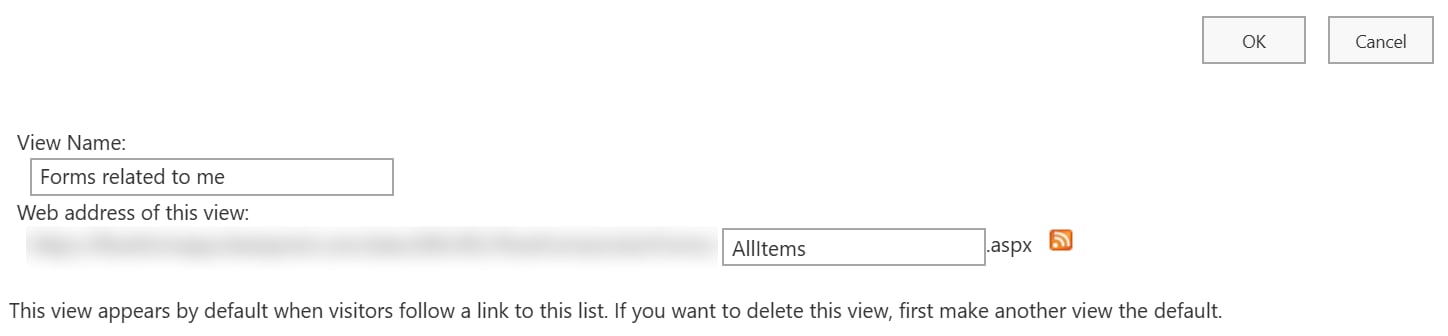 You can also change the web address from **AllItems** to, for example, **FormsRelatedToMe**. If you do, update any navigation links that point to the old address.
The **All items** tile on the FlowForma homepage finds this view by name. After renaming the view, edit the tile and select the renamed view, so the tile keeps showing a count. See [Process count tiles](/product/the-flowforma-site/flowforma-homepage#view-my-work).
Under **Filter**, select **Show items only when the following is true**. Select **Created By**, or another published person column such as an employee name, then **is equal to**, and enter **\[Me]**.
You can also change the web address from **AllItems** to, for example, **FormsRelatedToMe**. If you do, update any navigation links that point to the old address.
The **All items** tile on the FlowForma homepage finds this view by name. After renaming the view, edit the tile and select the renamed view, so the tile keeps showing a count. See [Process count tiles](/product/the-flowforma-site/flowforma-homepage#view-my-work).
Under **Filter**, select **Show items only when the following is true**. Select **Created By**, or another published person column such as an employee name, then **is equal to**, and enter **\[Me]**.
 If the column is indexed, it shows as **Created By (Indexed)**.
Forms started by FlowForma rather than a user, such as forms started from another form, show **SharePoint App** in **Created By**, so a **Created By** filter never shows them. If users need to see these forms, filter on a person column from your flow instead.
Select **OK**. The renamed view opens with a **Created By: \[Me]** filter, and only shows forms created by the person viewing the list.
If the column is indexed, it shows as **Created By (Indexed)**.
Forms started by FlowForma rather than a user, such as forms started from another form, show **SharePoint App** in **Created By**, so a **Created By** filter never shows them. If users need to see these forms, filter on a person column from your flow instead.
Select **OK**. The renamed view opens with a **Created By: \[Me]** filter, and only shows forms created by the person viewing the list.
 **Forms related to me** is one example of a view filtered by user. You can change or add filters to make your own views. See [Views](/product/using-forms/views) for more on filters and **\[Me]**.
If you use [form archiving](/product/flowforma-settings/form-archiving), a **Created By** filter also hides the Archive folder from this view. See [Manage views with archived forms](/guides/how-to-articles/manage-views-with-archived-forms) to keep it visible.
## Create personal views for administrators
Administrators can create a personal view that shows every form. A personal view is only visible to the person who created it, so each administrator creates their own.
Sign in with the administrator account that needs to see every form. Go to **Forms** > **All forms**, then select **+ Add view**. If you don't see it, select **»** to show more views.
**Forms related to me** is one example of a view filtered by user. You can change or add filters to make your own views. See [Views](/product/using-forms/views) for more on filters and **\[Me]**.
If you use [form archiving](/product/flowforma-settings/form-archiving), a **Created By** filter also hides the Archive folder from this view. See [Manage views with archived forms](/guides/how-to-articles/manage-views-with-archived-forms) to keep it visible.
## Create personal views for administrators
Administrators can create a personal view that shows every form. A personal view is only visible to the person who created it, so each administrator creates their own.
Sign in with the administrator account that needs to see every form. Go to **Forms** > **All forms**, then select **+ Add view**. If you don't see it, select **»** to show more views.
 Enter a name, for example **All forms (admin)**. Leave **Show as** set to **List**. Clear **Make this a public view**, then select **Create**.
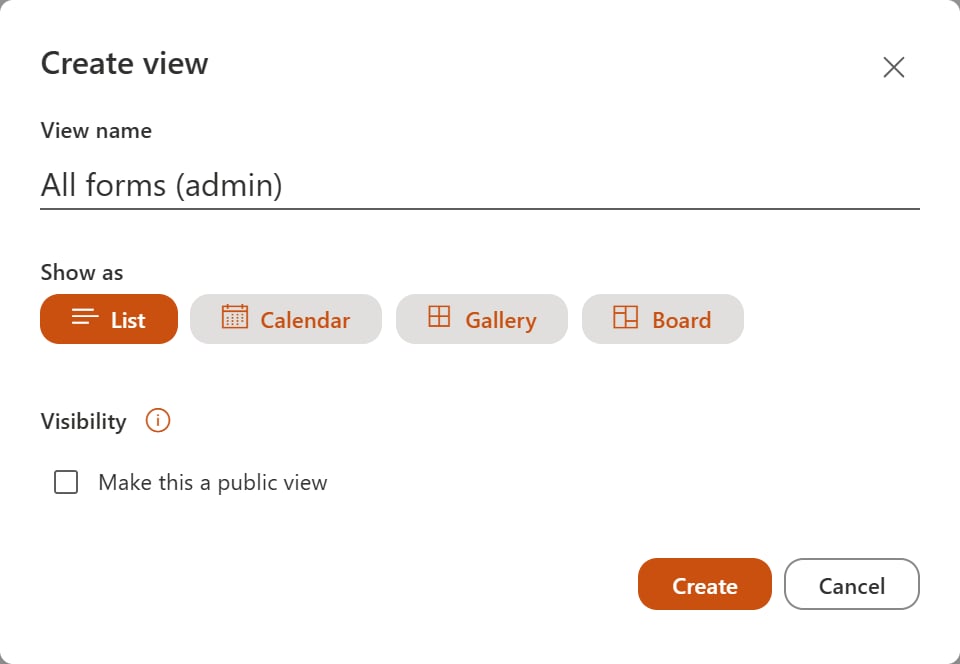 A personal view cannot be changed to a public view later.
The new view opens and shows every form in the list.
A personal view cannot be changed to a public view later.
The new view opens and shows every form in the list.
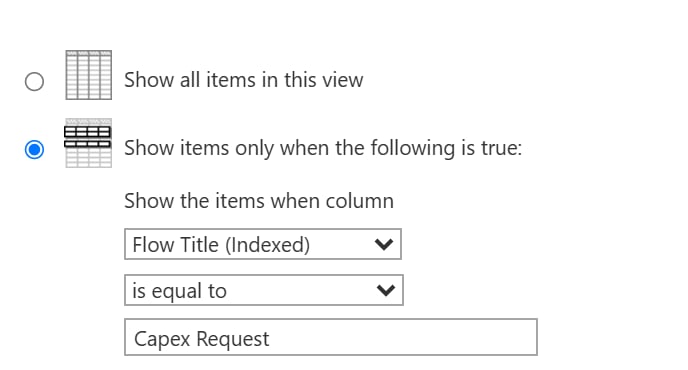
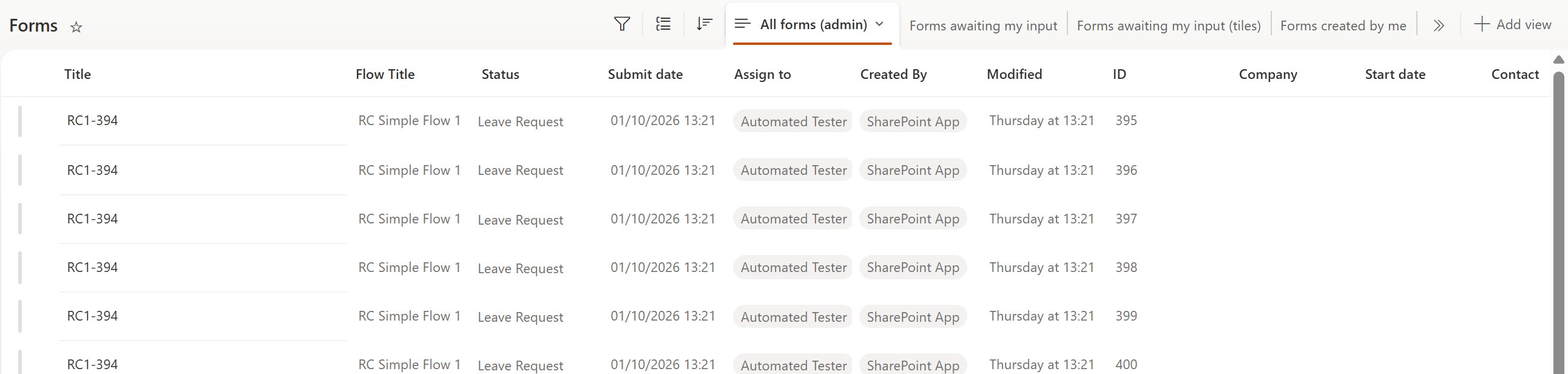 To show only some forms, for example the forms for one process, select the view name, then **Edit current view**. Under **Filter**, select **Show items only when the following is true**, choose a column such as **Flow Title**, enter the value, then select **OK**.
 This documentation is built and hosted on [Mintlify](https://mintlify.com), a developer documentation platform.