> ## Documentation Index
> Fetch the complete documentation index at: https://docs.flowforma.com/llms.txt
> Use this file to discover all available pages before exploring further.
# Create list in SharePoint
> Create a SharePoint list from site contents across on-premise, Azure, FlowForma Cloud, and Office 365, then add columns and data in quick edit mode.
## Where can you create lists?
You can **create** and **edit lists** from **site contents** in your SharePoint site. The location of your site contents depends on your installation of SharePoint and the location of your site or subsite. Site contents are available for each site or subsite, and you must be a site member with **edit** permission to manage lists.
## SharePoint on premise & SharePoint in the Cloud (Azure or FlowForma Cloud)
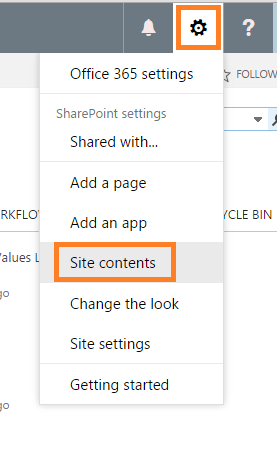
To access your site contents, go to your site and select **site contents** from the left navigation, or alternatively select **site contents** from the **site actions menu**.
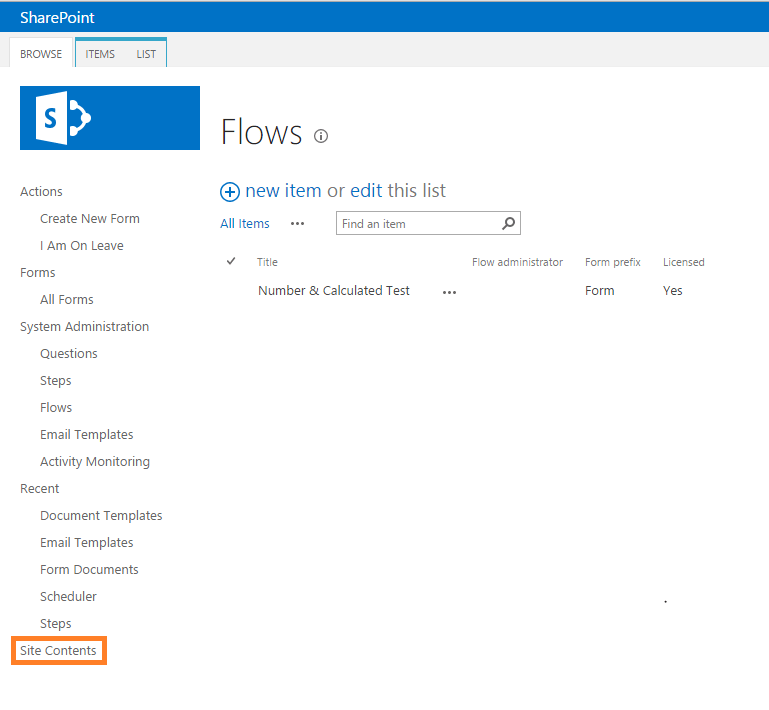
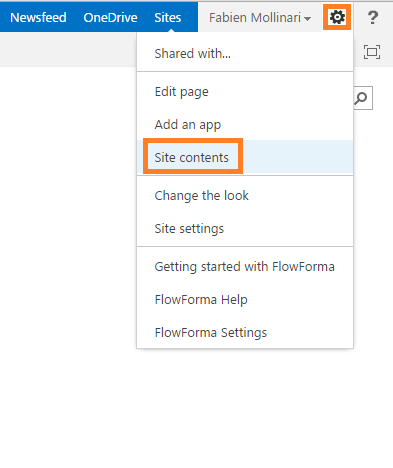 Note: this menu is accessible either from the site homepage or from the FlowForma homepage.
## SharePoint with Office 365
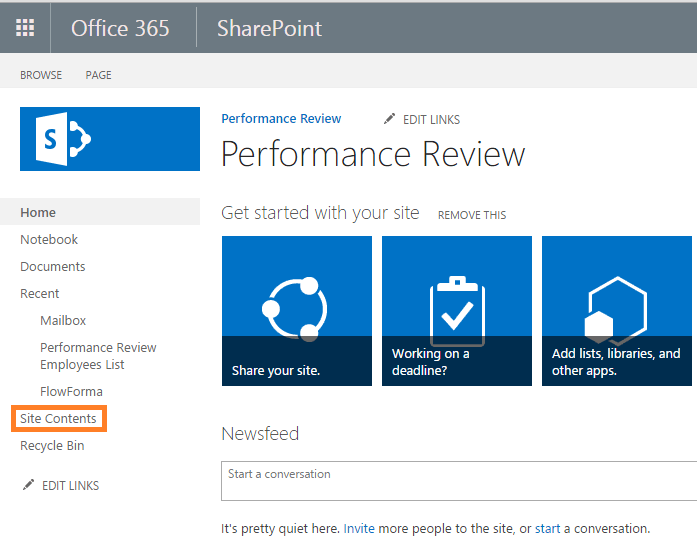
To access your site contents, go to your site homepage and select **site contents** from the left navigation or from the **site actions** menu. Site contents is not accessible from the FlowForma app homepage.
Note: this menu is accessible either from the site homepage or from the FlowForma homepage.
## SharePoint with Office 365
To access your site contents, go to your site homepage and select **site contents** from the left navigation or from the **site actions** menu. Site contents is not accessible from the FlowForma app homepage.
 ## Create your list
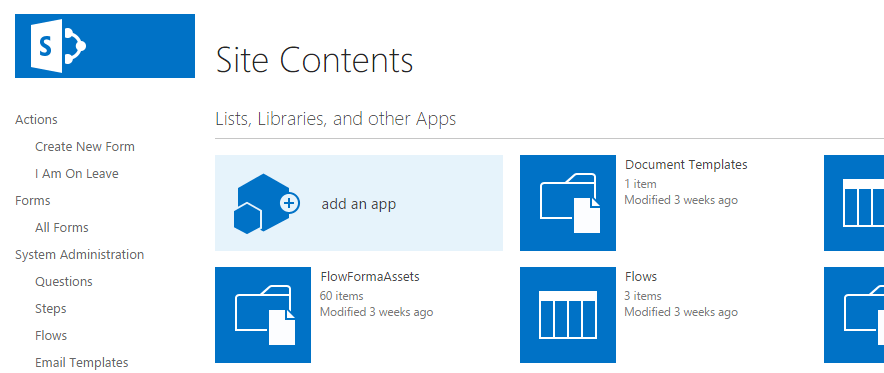
* In **site contents**, click **add an app**.
## Create your list
* In **site contents**, click **add an app**.
 * Select the list type you want.
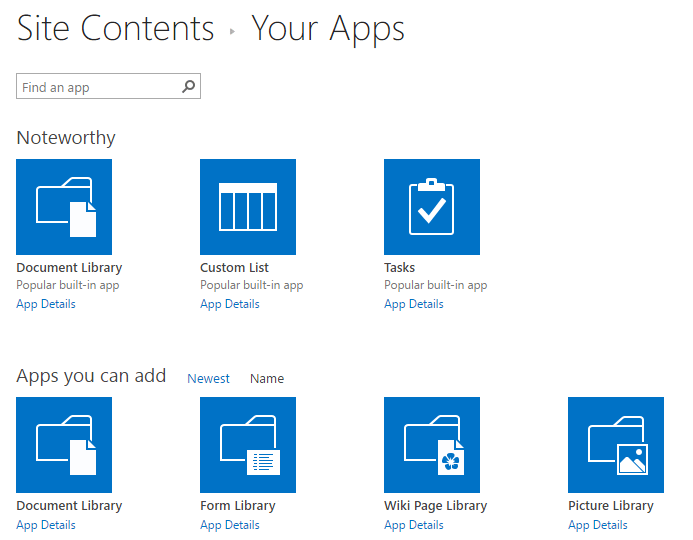 Note: there are many types of lists available in SharePoint. You can use the search bar to find the list type you need.
* Add a new name to your list and click **create**.
Note: there are many types of lists available in SharePoint. You can use the search bar to find the list type you need.
* Add a new name to your list and click **create**.
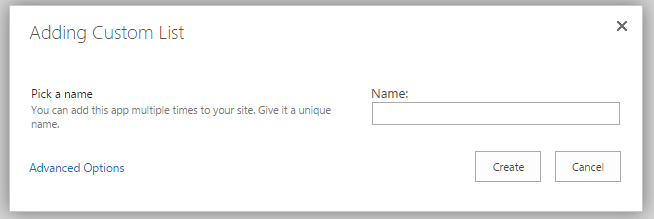 Note: in the advanced options, you can add also a description.
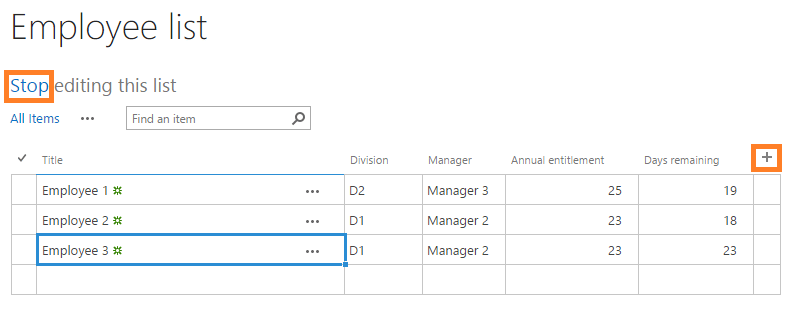
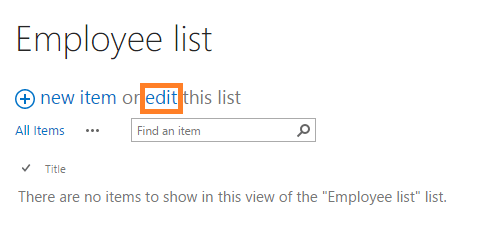
* Click **edit** to use the quick edit mode that allows you to add new items and columns.
Note: in the advanced options, you can add also a description.
* Click **edit** to use the quick edit mode that allows you to add new items and columns.
 * Add columns using the **+** button, fill in your data and click **stop** to save the changes.