> ## Documentation Index
> Fetch the complete documentation index at: https://docs.flowforma.com/llms.txt
> Use this file to discover all available pages before exploring further.
# API Connection Manager
> Configure API connections in FlowForma Settings by uploading Swagger or OpenAPI files, then use them in the Call External API rule for form integrations.
The API Connection Manager allows you to configure your API connections to make them available for use in the "[Call External API](/product/creating-flows/business-rules/business-rule-types/data-integration-rules/call-external-api)" rule.
The API Connection Manager can be accessed via FlowForma Settings.
## Adding a new connection
When you first open the **API Connection Manager**, it will ask you to provide details for a new API connection.
If you have a **Swagger** or **OpenAPI** file, you can upload this and it will read the file to load the available options it provides,
If you don't have a file, you will just need to enter a connection name, and connection base URL.
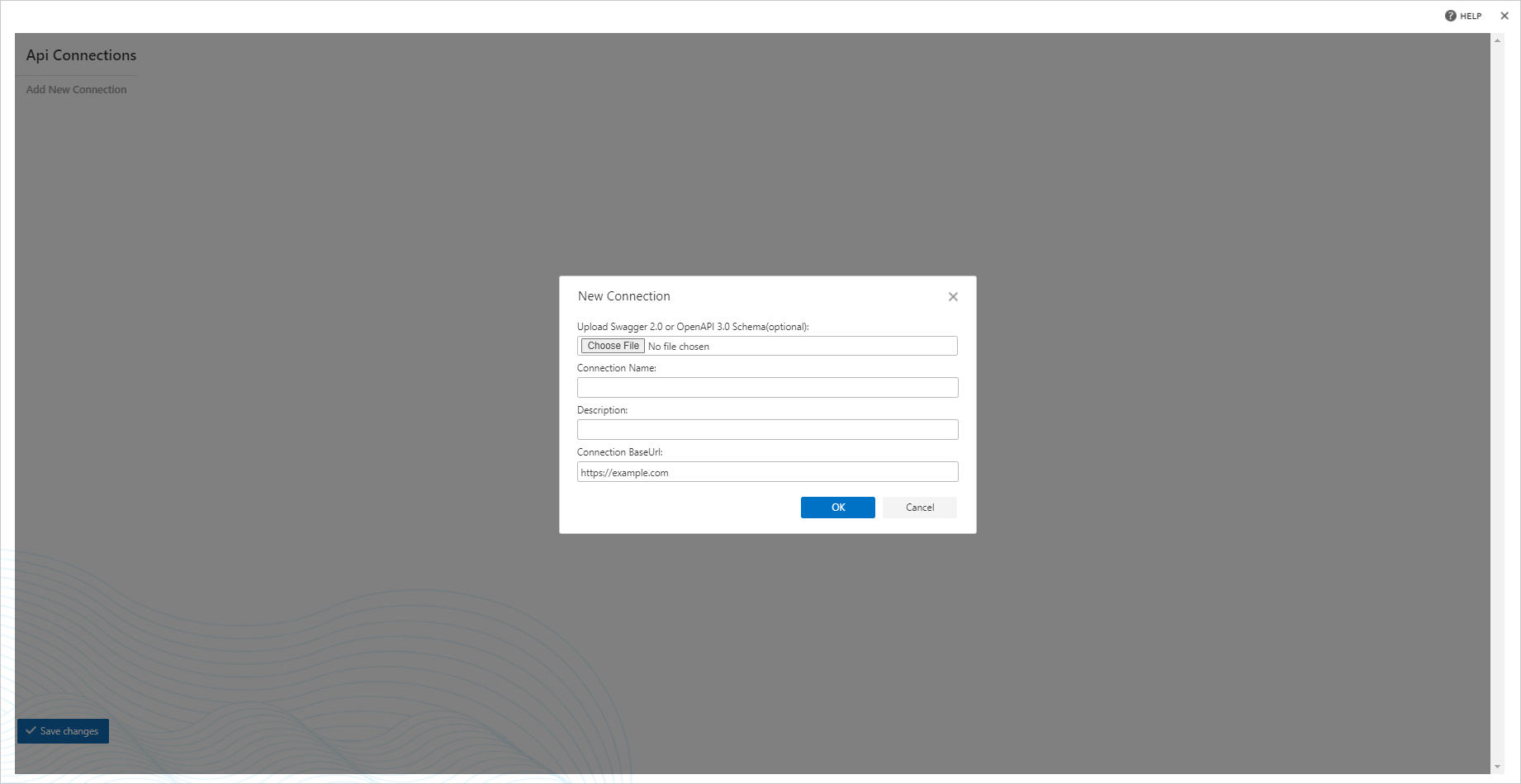
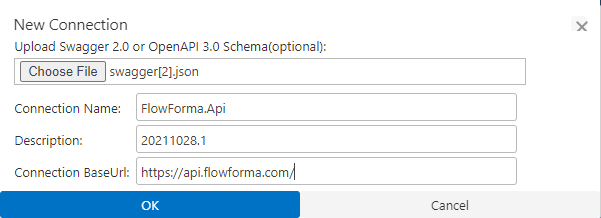 Here a swagger file is being uploaded and details are auto-populated for the connection.
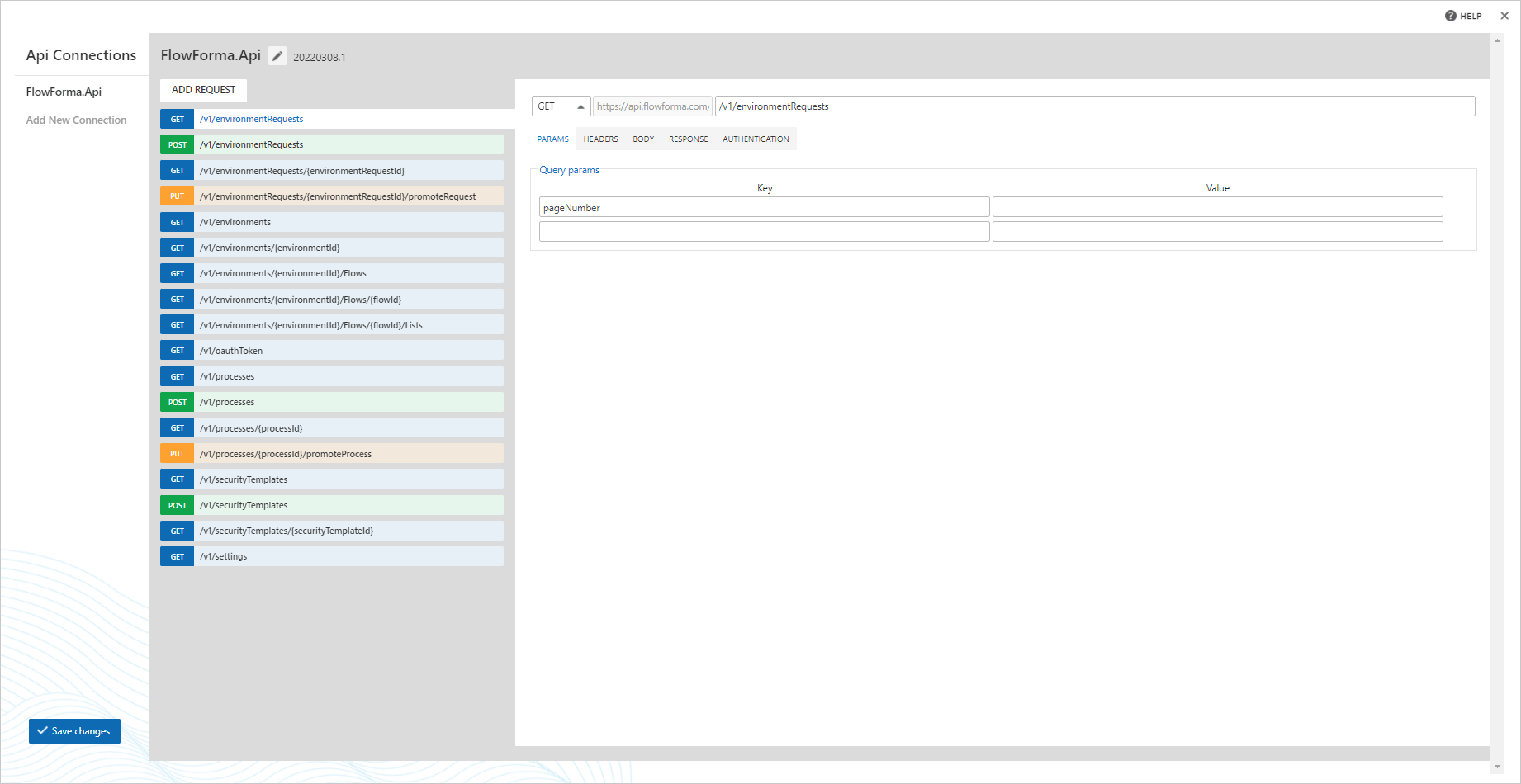 Once the connection is save, the next dialogue will display a list of all save connections on the left hand side
The middle panel will display a list of the available requests that can be made
The right panel will display options that can be configured for that request
## Query parameters
Once the connection is save, the next dialogue will display a list of all save connections on the left hand side
The middle panel will display a list of the available requests that can be made
The right panel will display options that can be configured for that request
## Query parameters
 If the request supports parameters, you can list them here, as well as provide a default value
## Headers
If the request supports parameters, you can list them here, as well as provide a default value
## Headers
 If the request supports parameters, you can list them here, as well as provide a default value
## Body
If the request supports parameters, you can list them here, as well as provide a default value
## Body
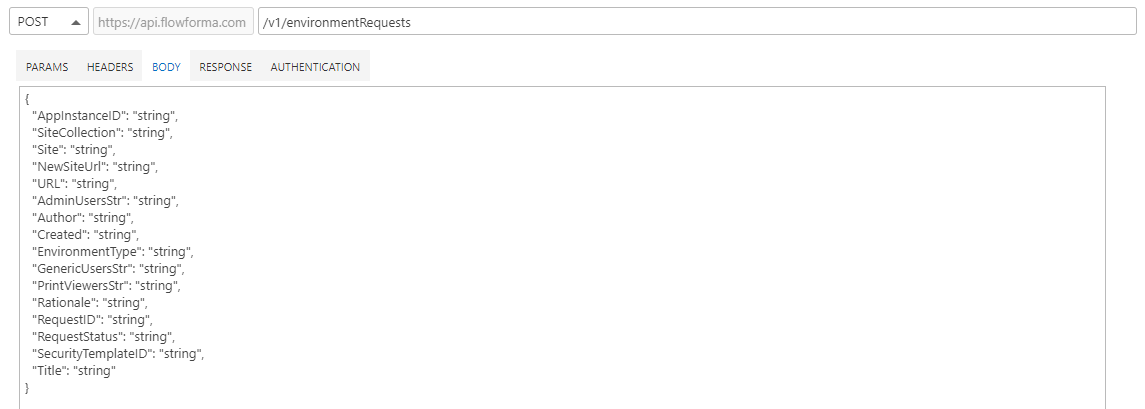 You can paste in a sample request for the body, this will make it easy to map the questions in your form to fields in the Call External API rule when making a request with information entered into the form.
## Response
You can paste in a sample request for the body, this will make it easy to map the questions in your form to fields in the Call External API rule when making a request with information entered into the form.
## Response
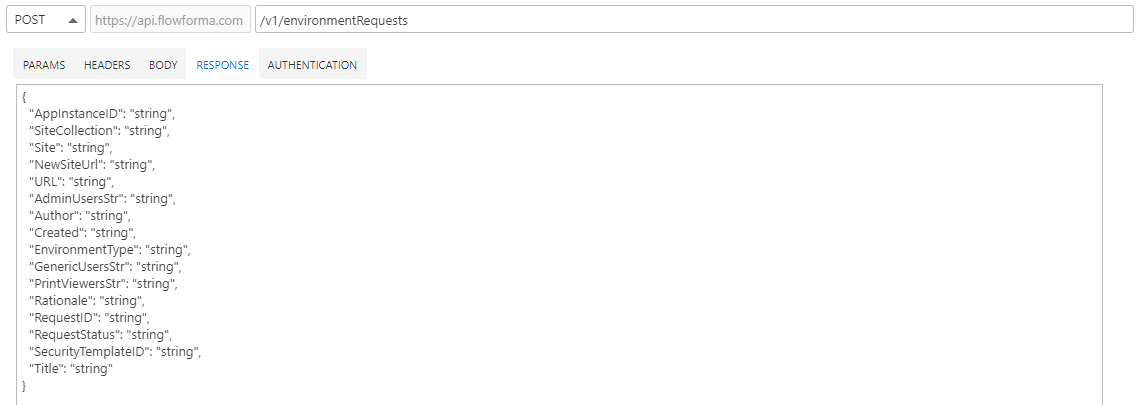 Similarly, you can paste in a sample response from the request, this will make it easy to map the response to questions in your form in the Call External API rule when making a request to display the response in the form.
## Authentication
Similarly, you can paste in a sample response from the request, this will make it easy to map the response to questions in your form in the Call External API rule when making a request to display the response in the form.
## Authentication
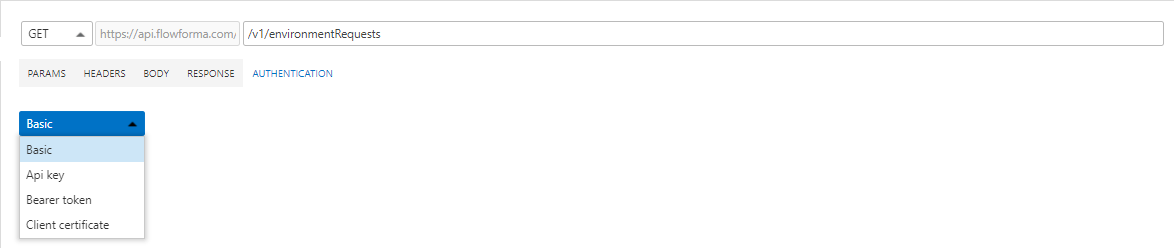 Here you can enter in the values required for authentication with the API
* **Basic:** allows you to authenticate using a username & password
* **API Key:** allows you to authenticate using an API Key
* **Bearer Token:** allows you to authenticate using a Bearer Token
* **Client certificate:** allows you to authenticate using a certificate
Here you can enter in the values required for authentication with the API
* **Basic:** allows you to authenticate using a username & password
* **API Key:** allows you to authenticate using an API Key
* **Bearer Token:** allows you to authenticate using a Bearer Token
* **Client certificate:** allows you to authenticate using a certificate